
Everything in the box
Every feature, sorted by job stage.
104 features
Quotes, scheduling, invoicing and payments, sorted by job stage.
Win the job
Customer capture, quotes and your booking page.
25 features
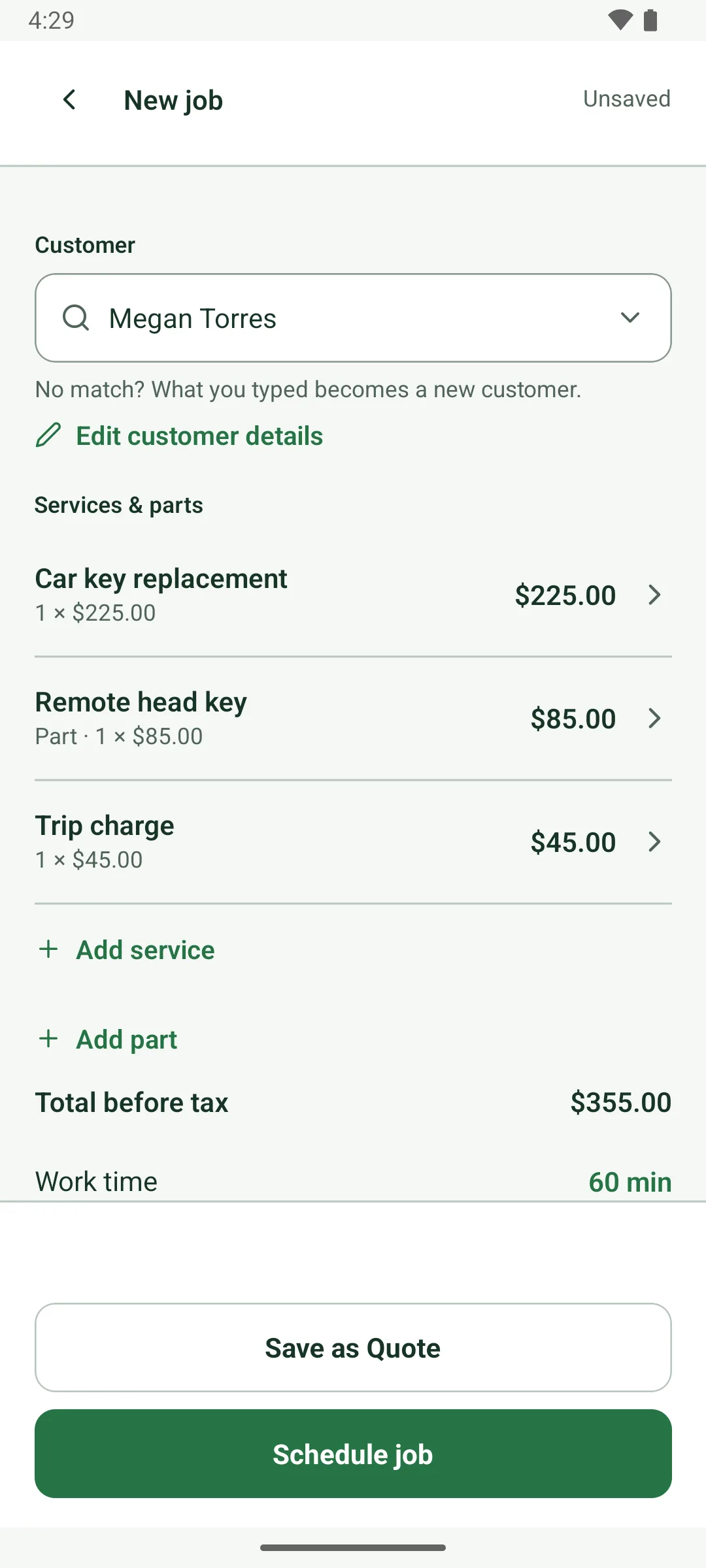
Quotes from services and partsBuild each quote from your service and part lines. The total is the price you quote.
Add saved services, parts from your list, or a one-off charge like a trip fee, each with a quantity. The invoice later starts from the same lines.
On screen: “Services & parts”, “Add service”, “Add part”, “One-off item”
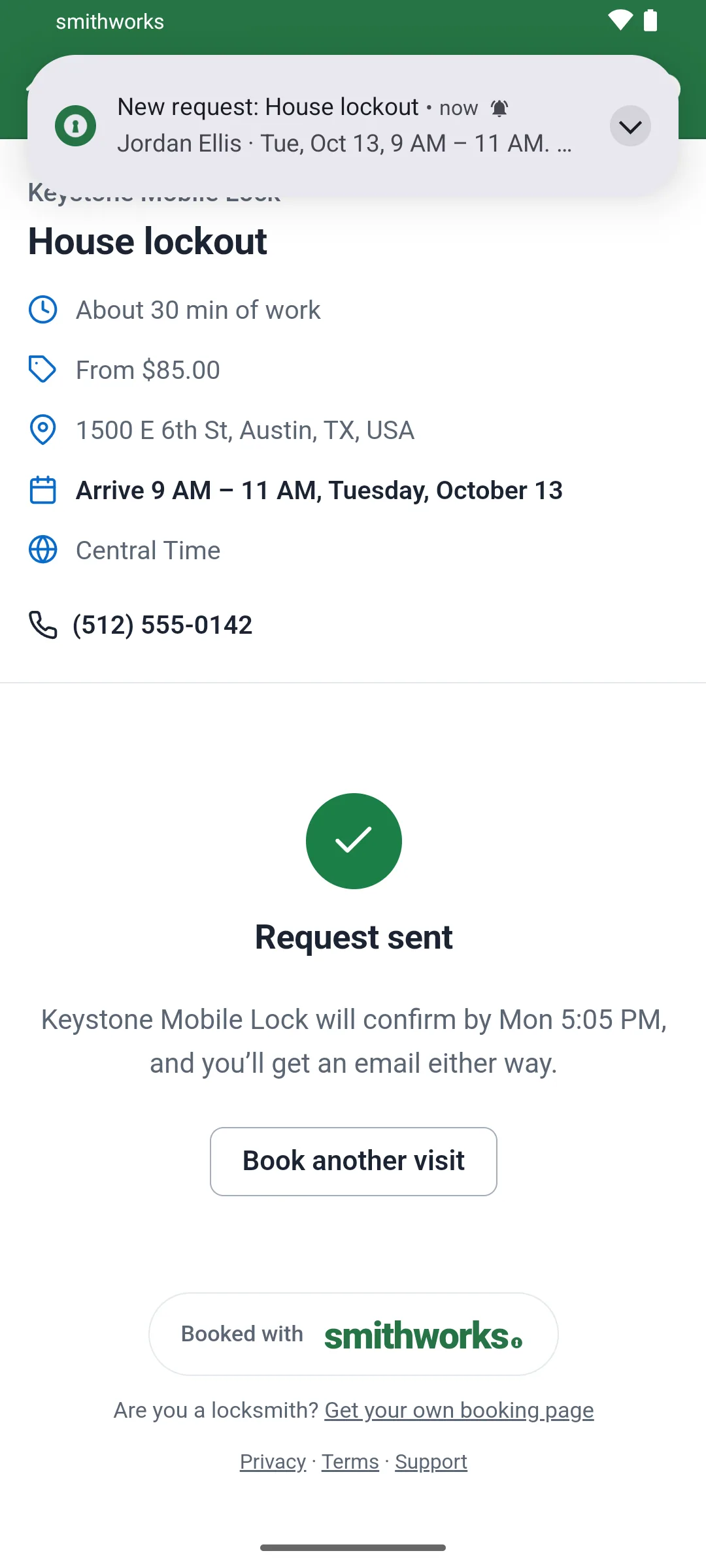
Your own booking pageCustomers pick a service, an address, a day and an arrival window. No customer account.
The page leads with your business name and phone number. Every online booking comes to you as a request for you to accept.
On screen: “Book a visit”, “Select a date & time”
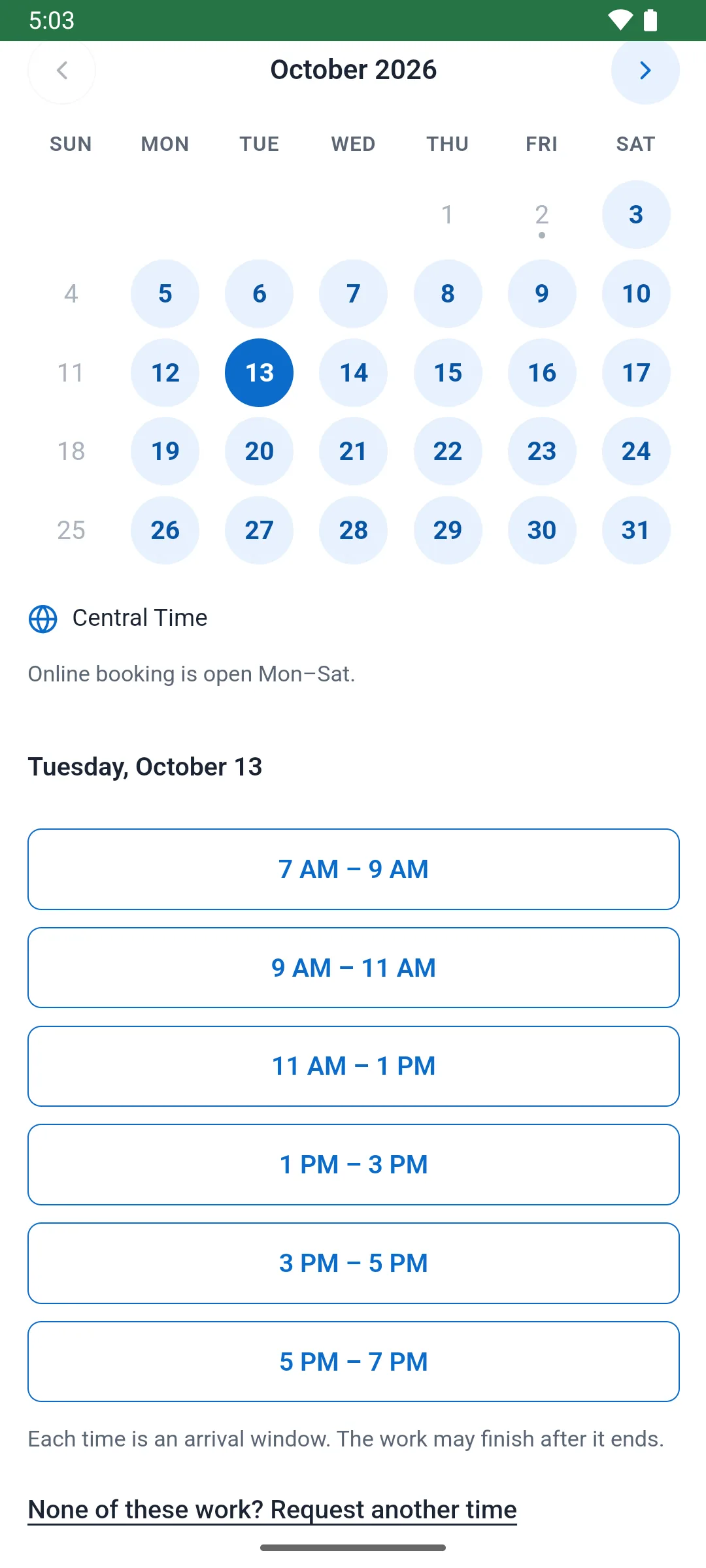
Online times you can makeEach offered window is checked against your jobs, your drive time and your Google Calendar.
Before a time is offered, smithworks tests it against your other jobs, held requests, traffic-aware drive time there and back, and the work time. Busy time counts when Google Calendar is connected.
On screen: “Drive time is checked for every request.”
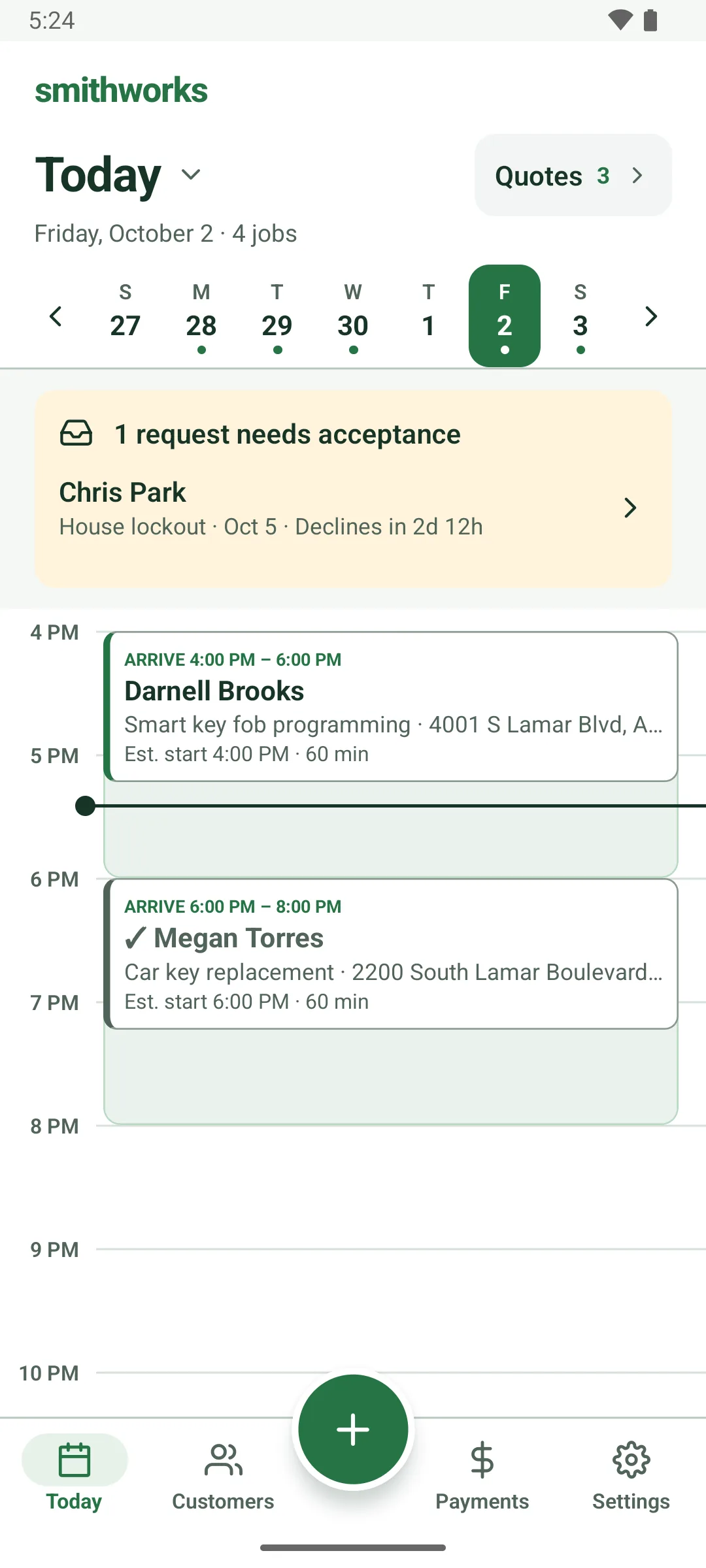
Accept or decline requestsOnline bookings wait in a Needs acceptance box on Today, with the window held while you decide.
Open a request to Accept or Decline it. To offer a different time, tap Edit, change it, then Save & accept.
On screen: “Needs acceptance”, “Accept”, “Decline”, “Save & accept”
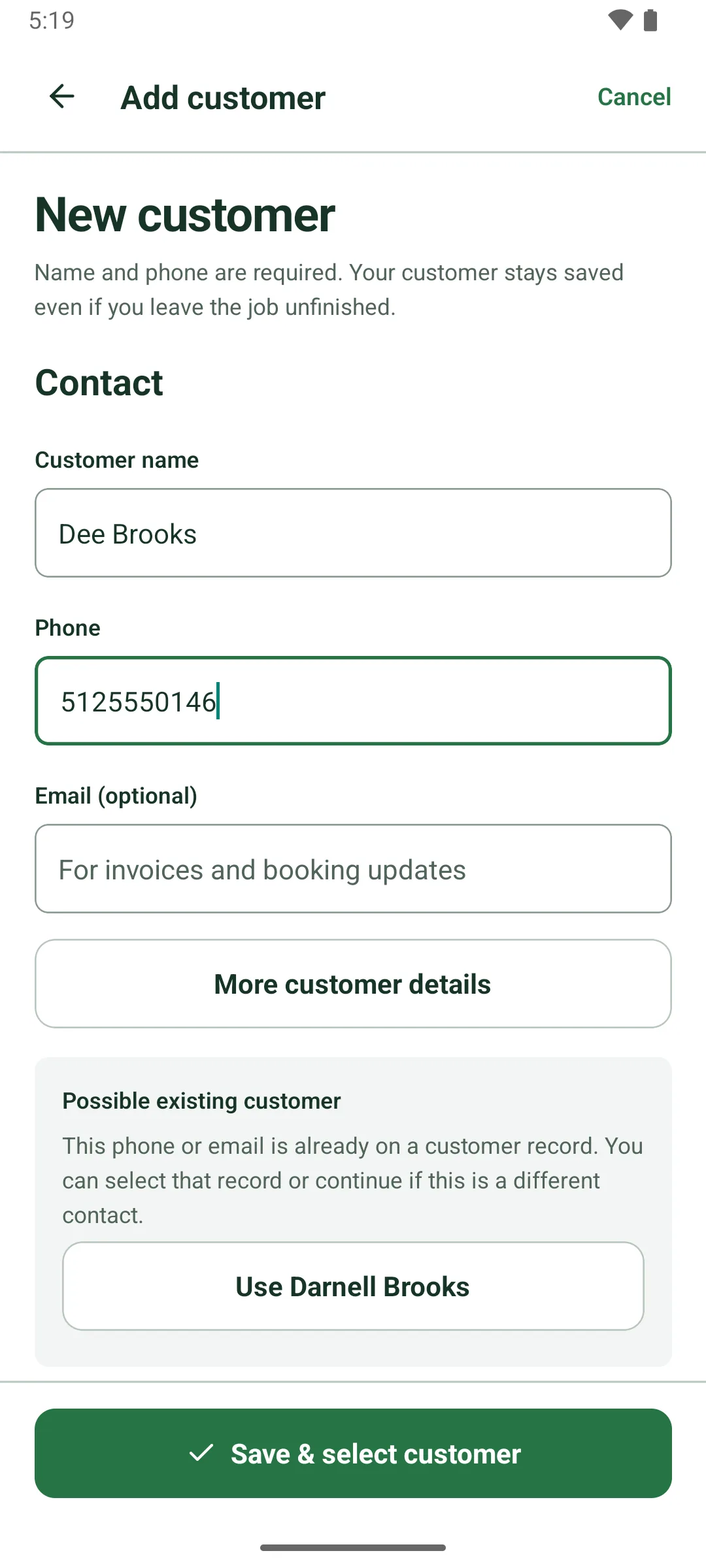
Customer first, then the jobSearch by name or phone, or add someone new with a name and a valid US phone.
Save & select customer stores them right away, so the customer stays saved even if you leave the job unfinished.
On screen: “Name or phone · search or add”, “Save & select customer”
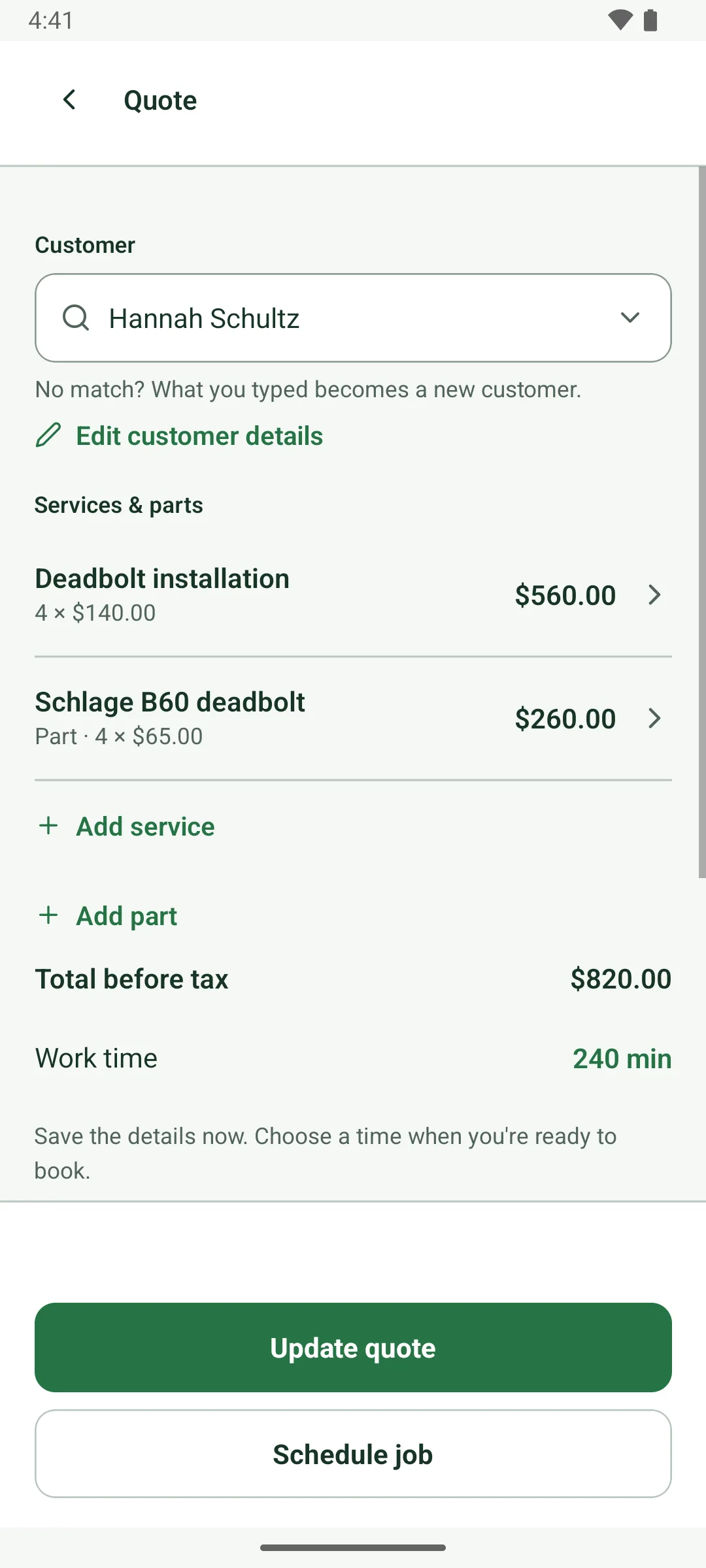
Quotes you book laterSave a quote without picking a time. Open quotes wait in one searchable list under Today.
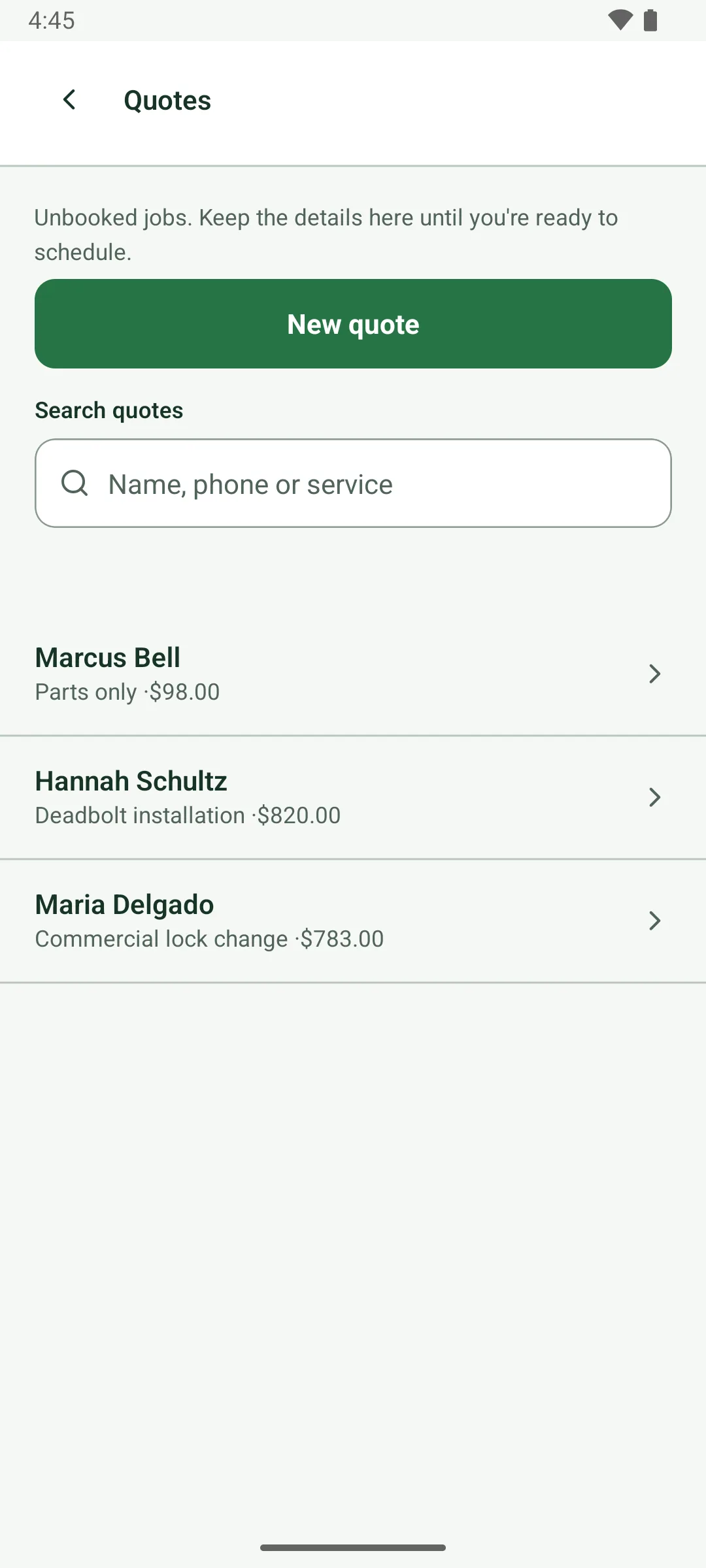
Quotes are listed most recently updated first, with customer, services and price. Waiting on a customer or a part? Save it now and schedule it later.
On screen: “Save as Quote”, “Update quote”, “Quotes”
Quote to job, no retypingTap Schedule job on a quote, pick a window, and the same record becomes the job.
The lines, customer and vehicle carry over, and the quote leaves the Quotes list. A quote needs at least one service before it can be scheduled.
On screen: “Schedule job”
Service area checkOnline times are offered only for addresses inside your service radius.
The radius is measured in a straight line from your base, 25 miles unless you change it. Address suggestions center on your base, so the page never asks for the customer's location.
On screen: “This address is outside the service area.”
Requests that close themselvesA countdown shows how long you have to answer. If time runs out, the request declines itself.
You choose from 12 hours to 3 days. A request always closes at least an hour before its window, the time frees up, and the customer gets a polite email.
On screen: “Declines in 5h”, “Declined automatically · no answer in time”
Booking rules you setSet your service radius, window length, how far ahead, the earliest day and online hours.
Settings > Online booking also sets how long you have to answer requests, and optional online booking hours for each weekday.
On screen: “Service radius (miles)”, “Earliest online booking”, “Answer requests within”, “Online booking hours”
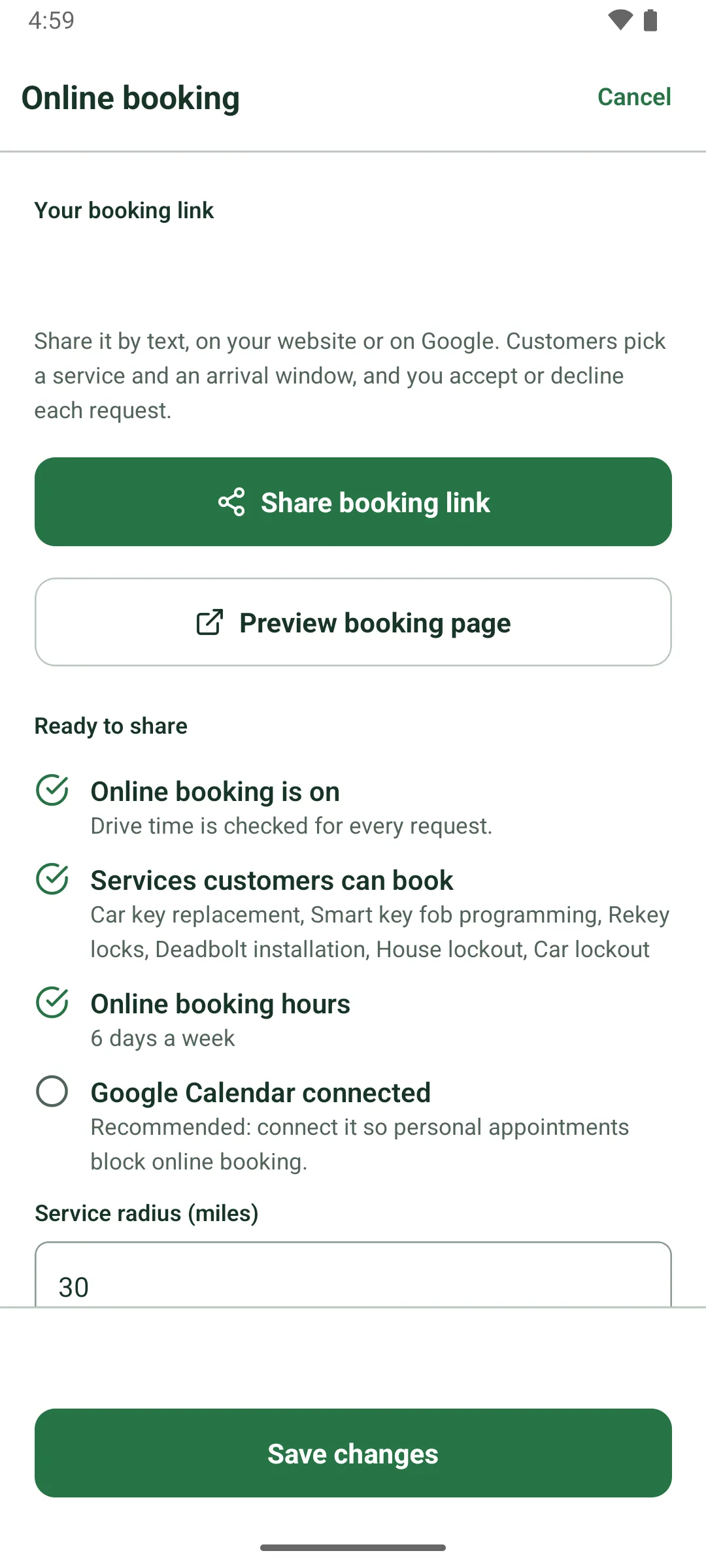
Booking link and checklistYour booking link is made from your business name. A checklist shows what's left before you share.
Share booking link sends it from your phone, and Preview booking page shows what customers see. The checklist covers booking on, bookable services, hours and Google Calendar.
On screen: “Share booking link”, “Preview booking page”, “Ready to share”
Customers hear back by emailCustomers get a Request received email, and a polite note with other times if you can't make it.
After booking, the page tells the customer when you'll answer by. If you decline or time runs out, the email apologizes and offers Choose another time and your number.
On screen: “Request sent”, “Choose another time”
New-request email to youEach online request emails you the service, window, address, vehicle and the customer's notes.
Reply to reach the customer. Open request opens it in the app, and when there's time, a reminder comes three hours before an unanswered request declines.
On screen: “Open request”
Phone alerts for requestsA new online request pops up on your phone. Tap it to accept or decline.
The app asks once to allow notifications. When there's time, an Answer soon alert comes three hours before a request declines. Signing out stops alerts on that phone.
On screen: “Booking requests”
Duplicate customer checkEnter a phone or email already on file and smithworks points you to the existing customer.
When you're adding someone from a job, Use picks the existing record, so their history stays in one place.
On screen: “Possible existing customer”
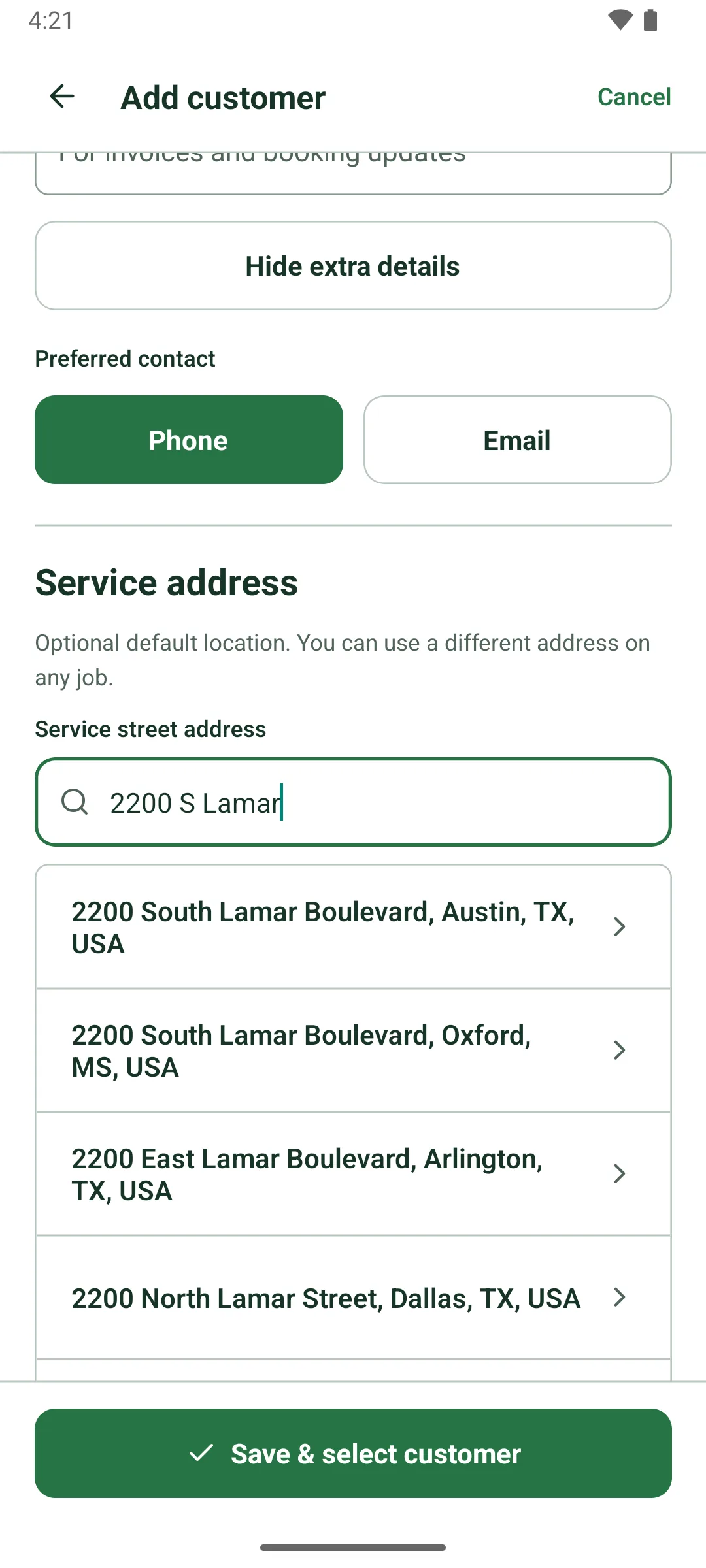
Address search with fallbackAddresses autocomplete from Google Maps as you type, with suite numbers and a manual fallback.
Suggestions center on where you are, or on your base when location is off, and fill street, city and ZIP. If search is unavailable or you're offline, type the address yourself.
On screen: “Start typing a street address”, “Apartment / suite (optional)”, “Enter address manually”
Saved address fills the jobPick a customer and their saved service address is already on the new job.
Switch the customer on an existing job and smithworks asks before using the new customer's saved address, so a job never quietly takes the wrong location.
On screen: “Use the customer's saved address?”, “Keep job address”
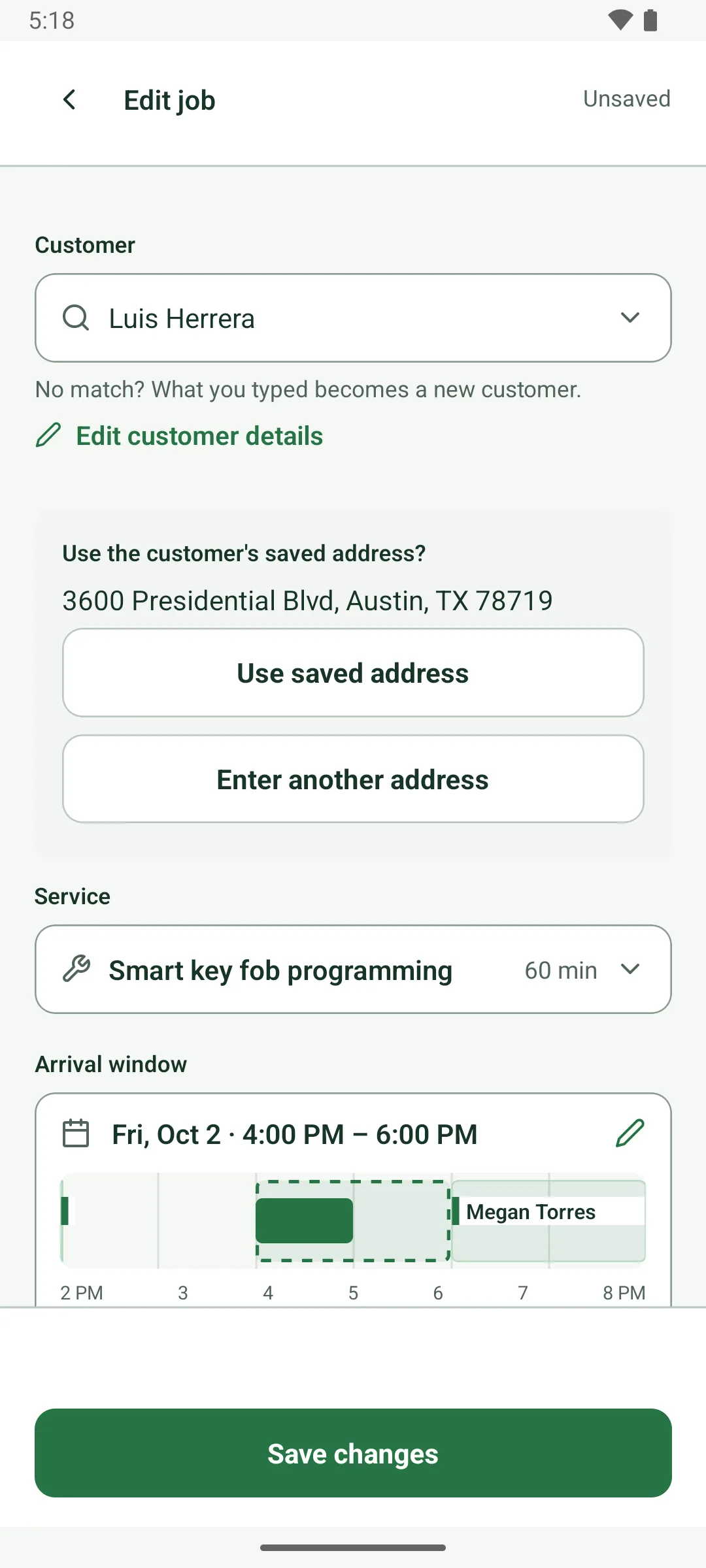
Add from phone contactsPick one person from Android's contact list. Only the name and number you tap come back.
smithworks doesn't ask for contacts permission and never sees your contact list.
On screen: “Add from phone contacts”
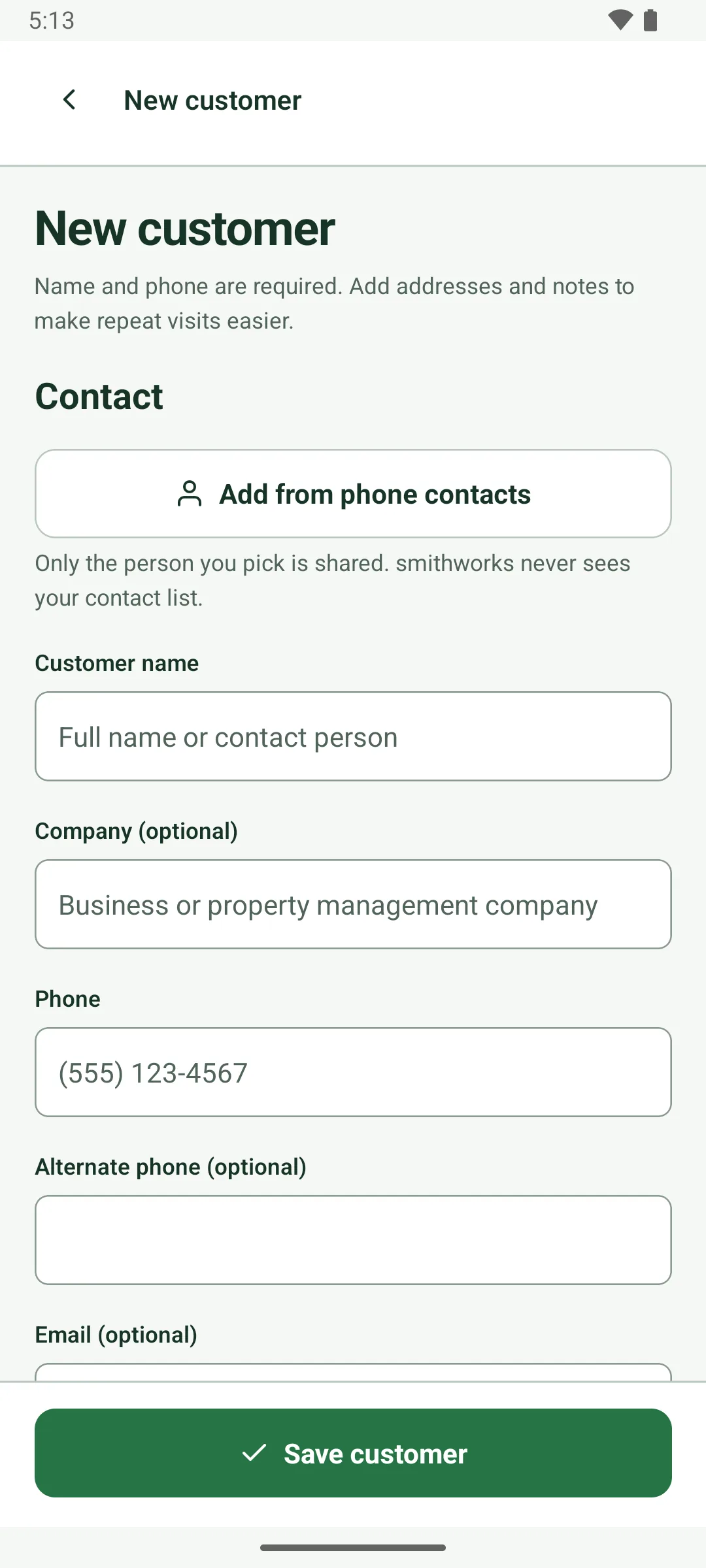
Last job's address, reusedNo saved address? New jobs and quotes use the address from the customer's most recent job.
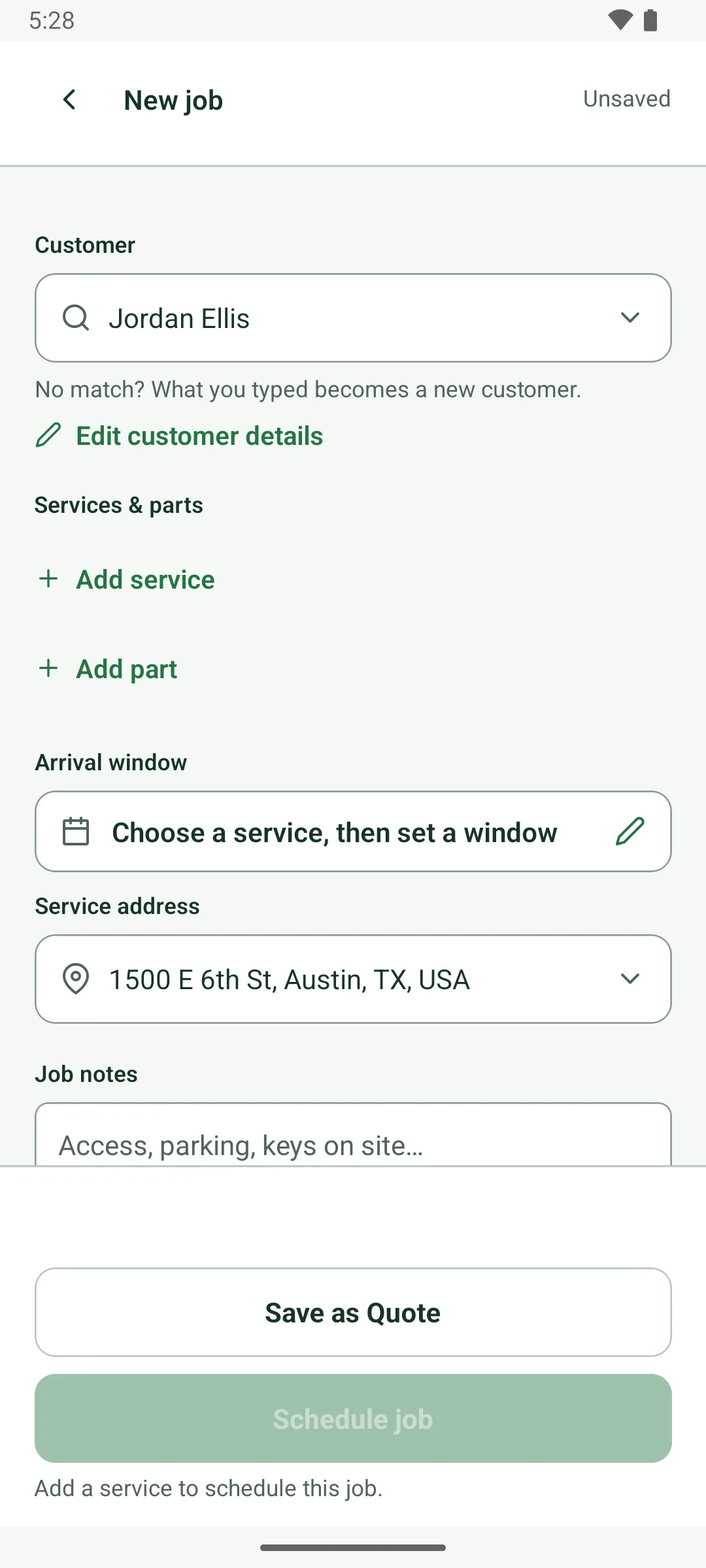
Parts-only quotesPrice parts before the work is decided. The quote is listed as Parts only.
Work time stays hidden until you add a service, and scheduling still asks for at least one service.
On screen: “Parts only”, “Add a service to schedule this job.”
Choose what's bookable onlineMark each service bookable online or manual only. Customers see its work time and starting price.
Multi-day work always stays manual.
On screen: “Available for online booking”, “Manual only”
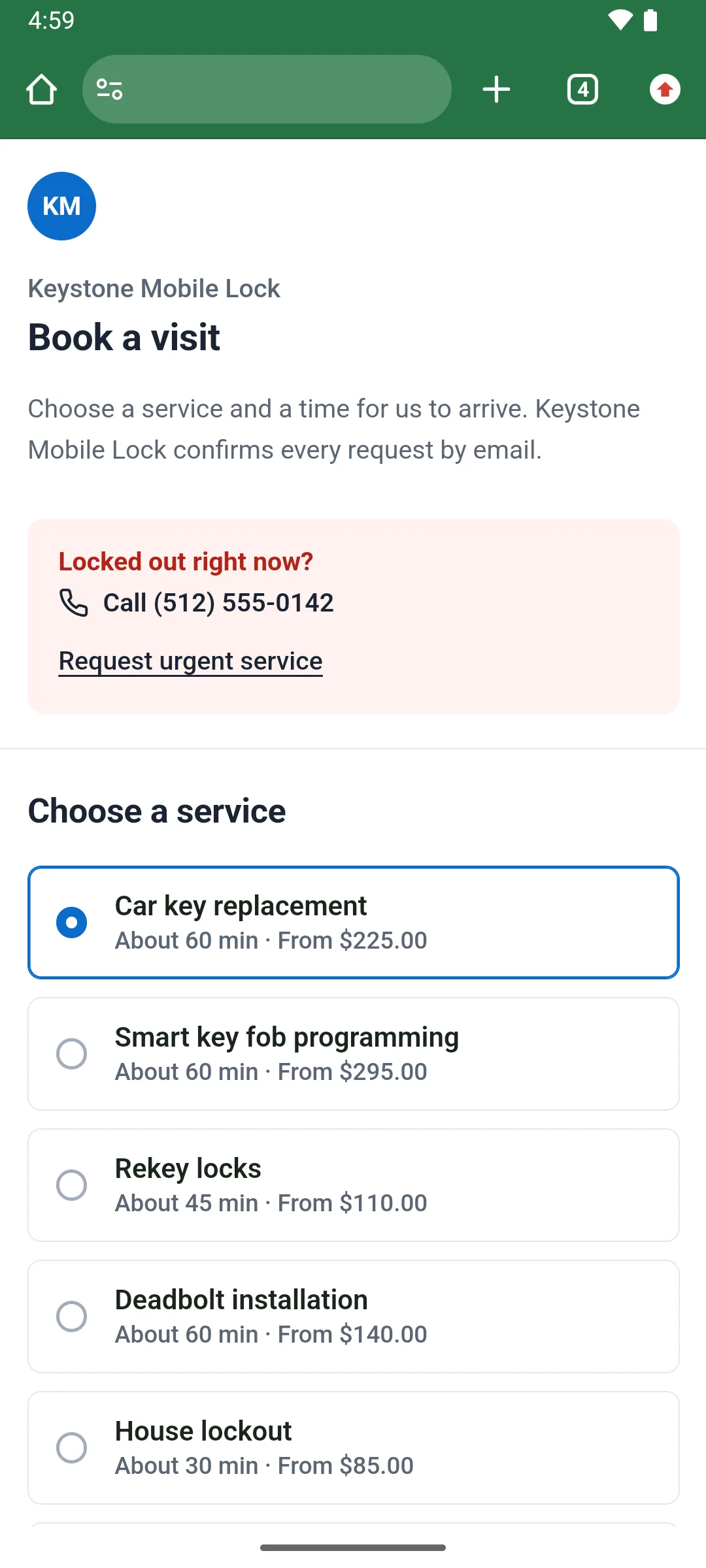
Customers add their vehicleOn automotive services, customers can look up a VIN or pick year, make and model.
Vehicle details are optional for the customer. When they fill them in, you know the car before you roll.
On screen: “Vehicle details”, “Look up”
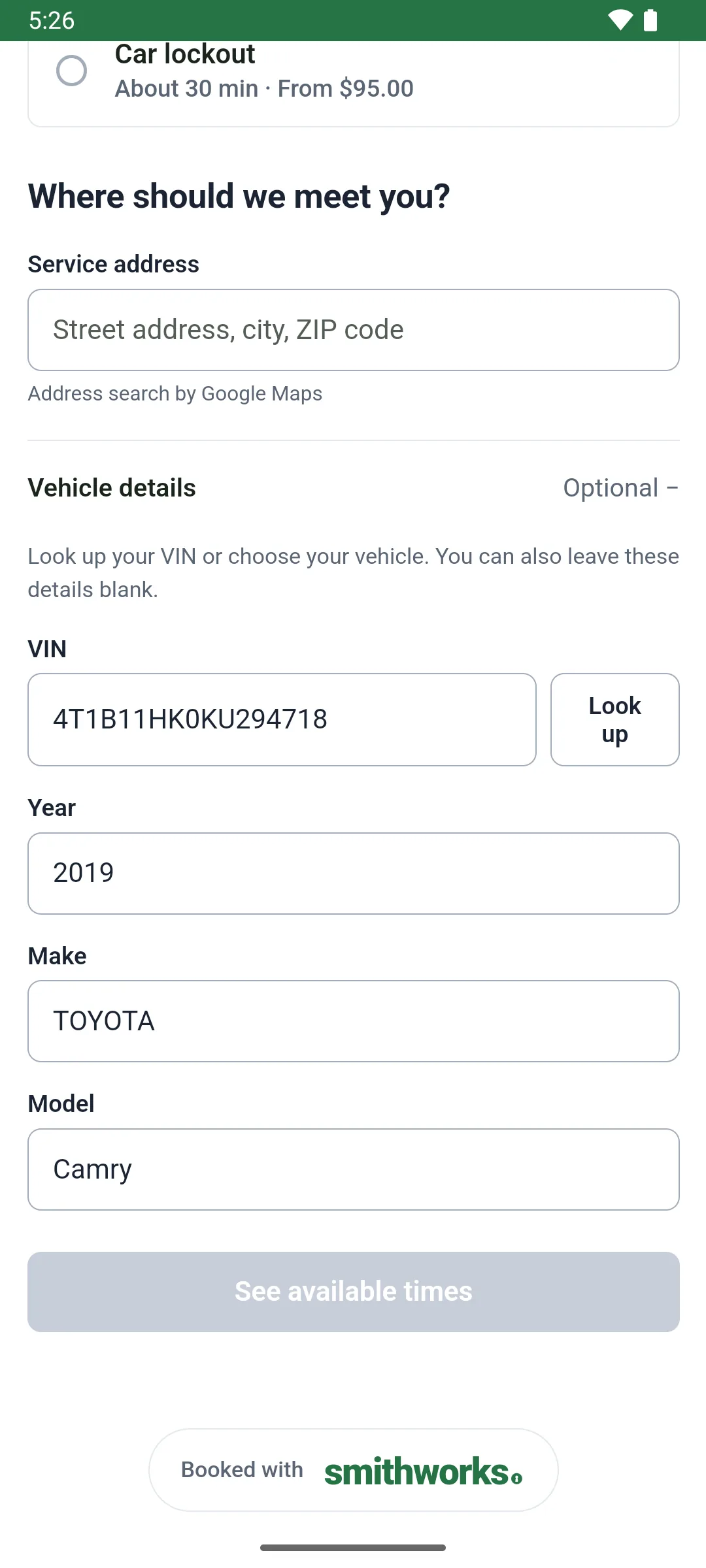
Locked out right now?Customers who can't wait can call you or send an urgent request without a set time.
If no window suits, they can ask for a callback, clearly marked as a request, not a confirmed appointment.
On screen: “Locked out right now?”, “Request urgent service”, “Request a callback”
No dead ends for customersWhen times can't be offered, the page says why and points customers to your number.
If drive time can't be checked, no times are shown and customers can send a request instead, so they never see a time you can't make.
Junk booking protectionA hidden bot trap, hourly limits, a daily cap and duplicate-safe sending cut down junk requests.
Each business takes up to 40 online requests a day, and each phone number up to three open requests. A request sent twice is saved once.
Plan the day
Arrival windows, drive time and your calendar.
24 features
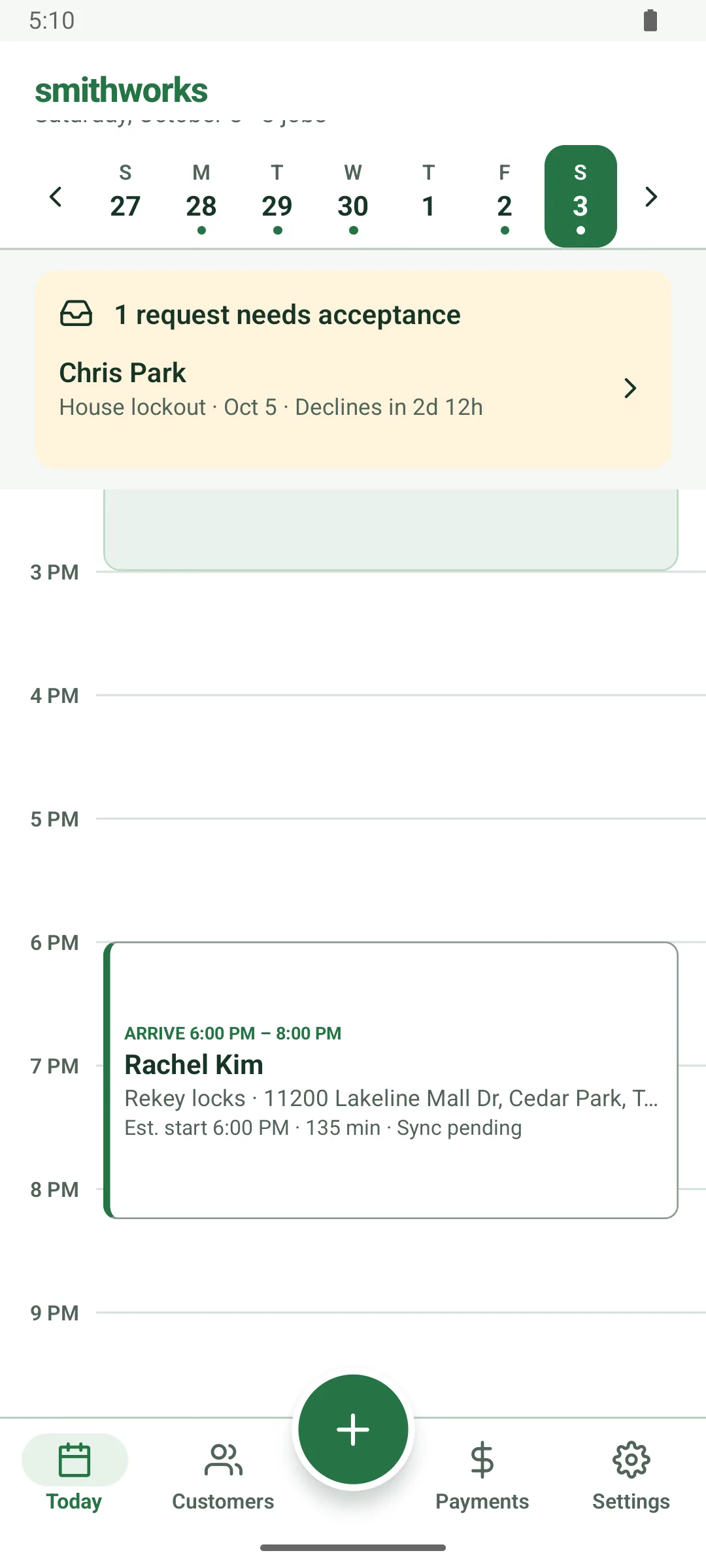
Today: your day gridEvery job, its promised window and its work time on a 24-hour grid, with a line at now.
Each card shows the arrival window, customer, services, address, estimated start and minutes of work.
On screen: “Today”, “ARRIVE”, “Est. start”
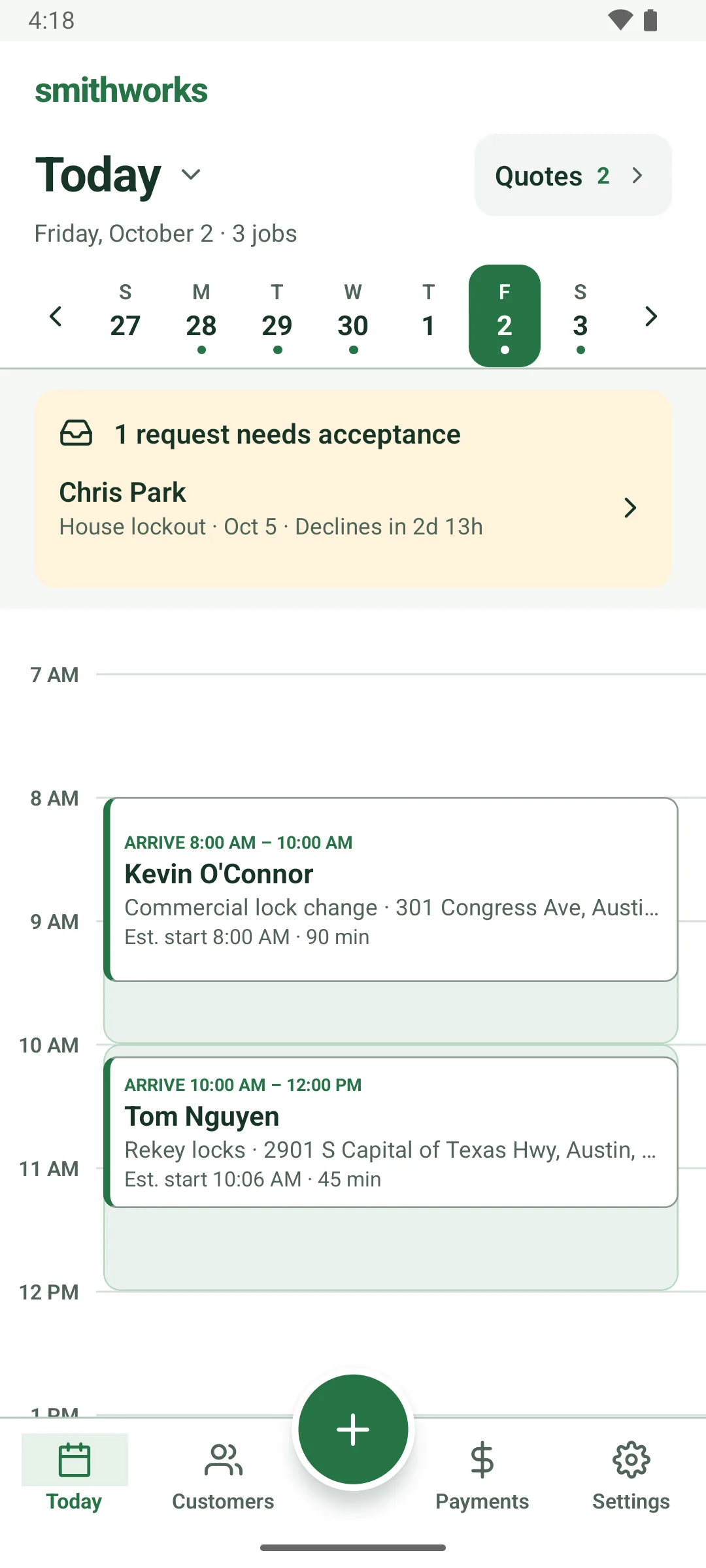
Promised arrival windowsEach scheduled job carries a promised arrival window, like 9 to 11 AM.
The window is when you arrive; the work can run past it. Tap the window on the job to move or resize it. Emergency jobs are booked for now instead.
On screen: “Arrival window”, “Choose an arrival window”
Drive time in every planTraffic-aware drive time from your base or the last job sets an estimated start inside each window.
Your travel safety buffer is added too. New jobs fit in without reordering the work you already have, and emergency and multi-day jobs keep their fixed times.
On screen: “Estimated start”, “Base address”
Google Calendar busy timeBusy time from your Google Calendar shows on your day and gets planned around. Titles never show.
smithworks asks Google only for free/busy time and a calendar it creates itself, so it can't read your event details. Connect, reconnect or disconnect in Settings.
On screen: “Google Calendar · Busy”, “Other calendar events aren’t shown.”, “Connect Google Calendar”
Next job: Navigate, CallThe next job on Today is highlighted, with Navigate and Call buttons right on the card.
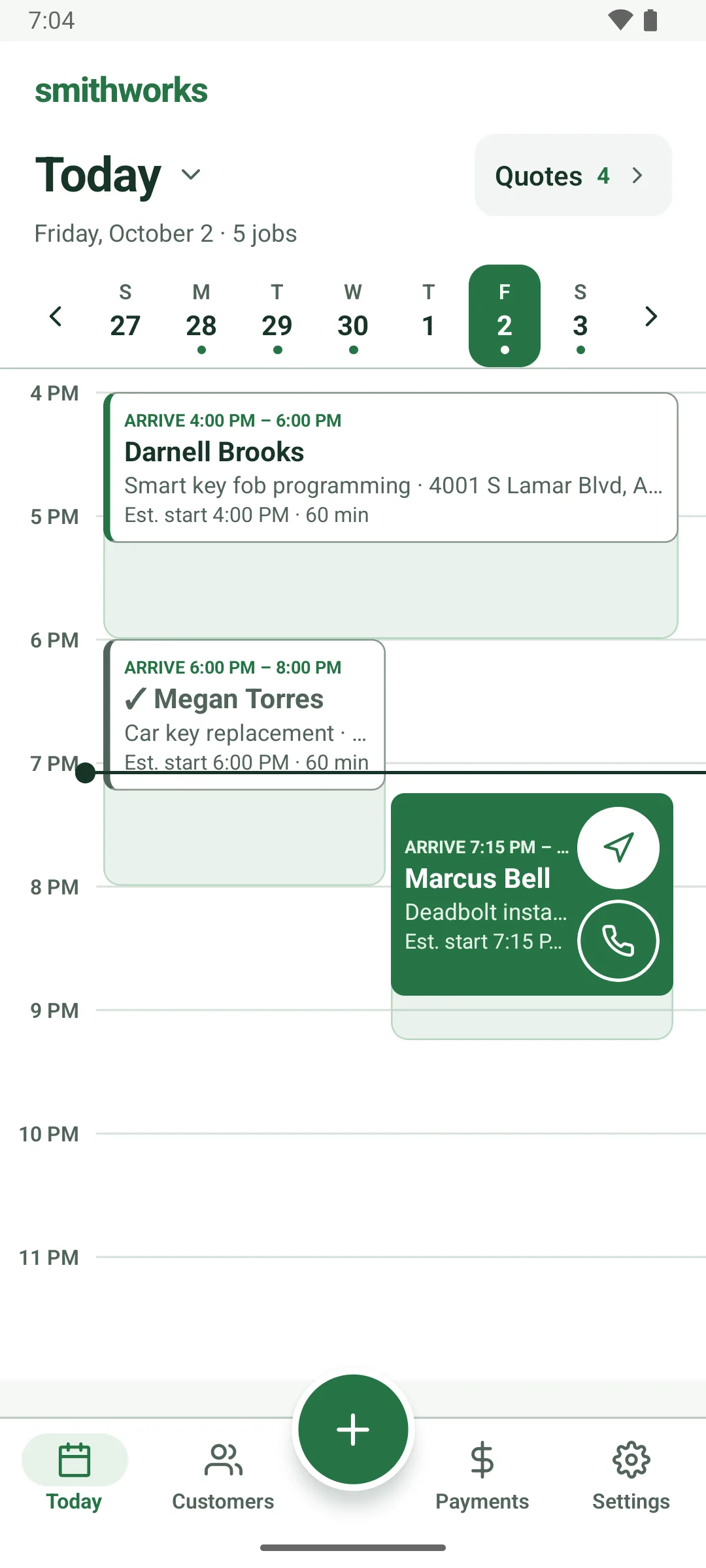
Next open window, suggestedPick a service and smithworks suggests today's next open window, around your jobs and busy time.
If nothing is left today, it says so and lets you pick a time; overlaps are allowed.
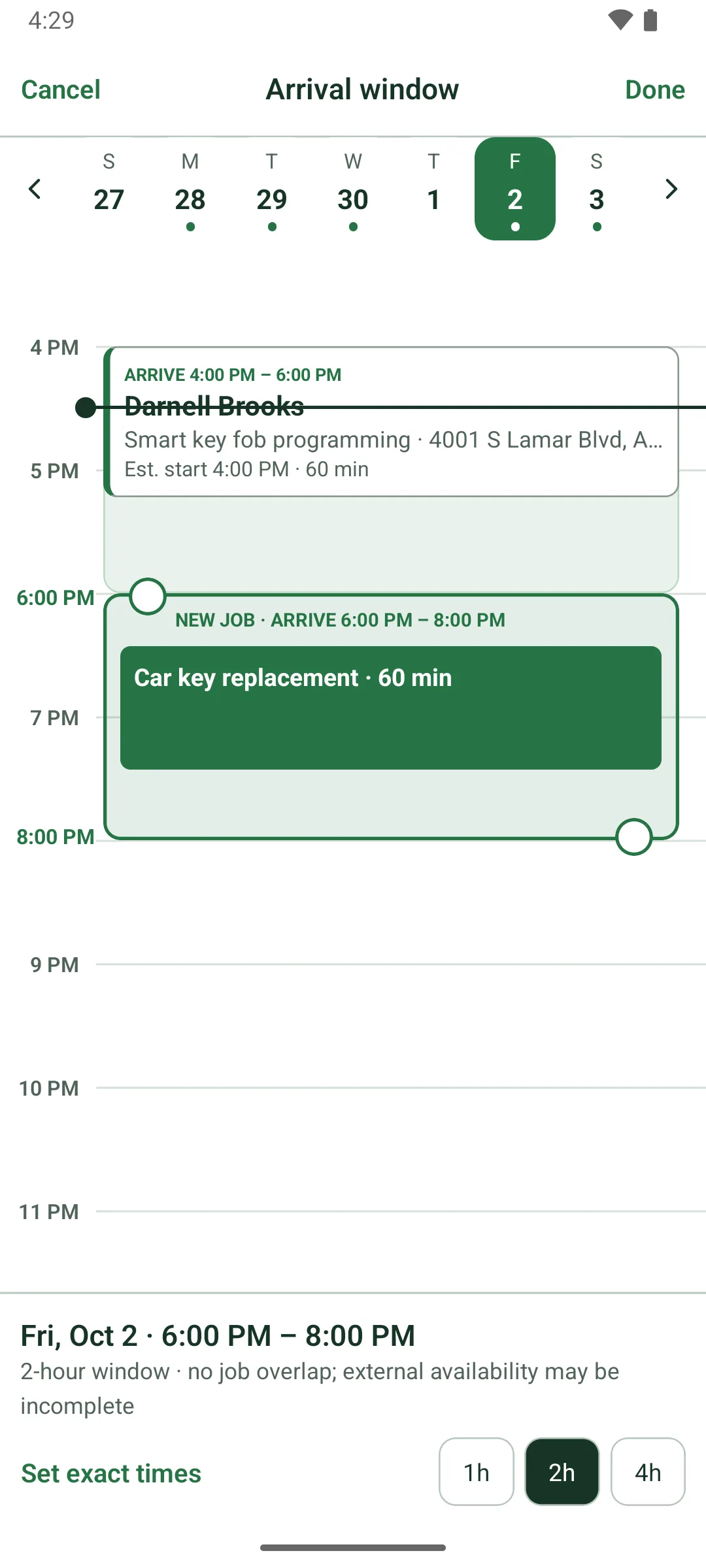
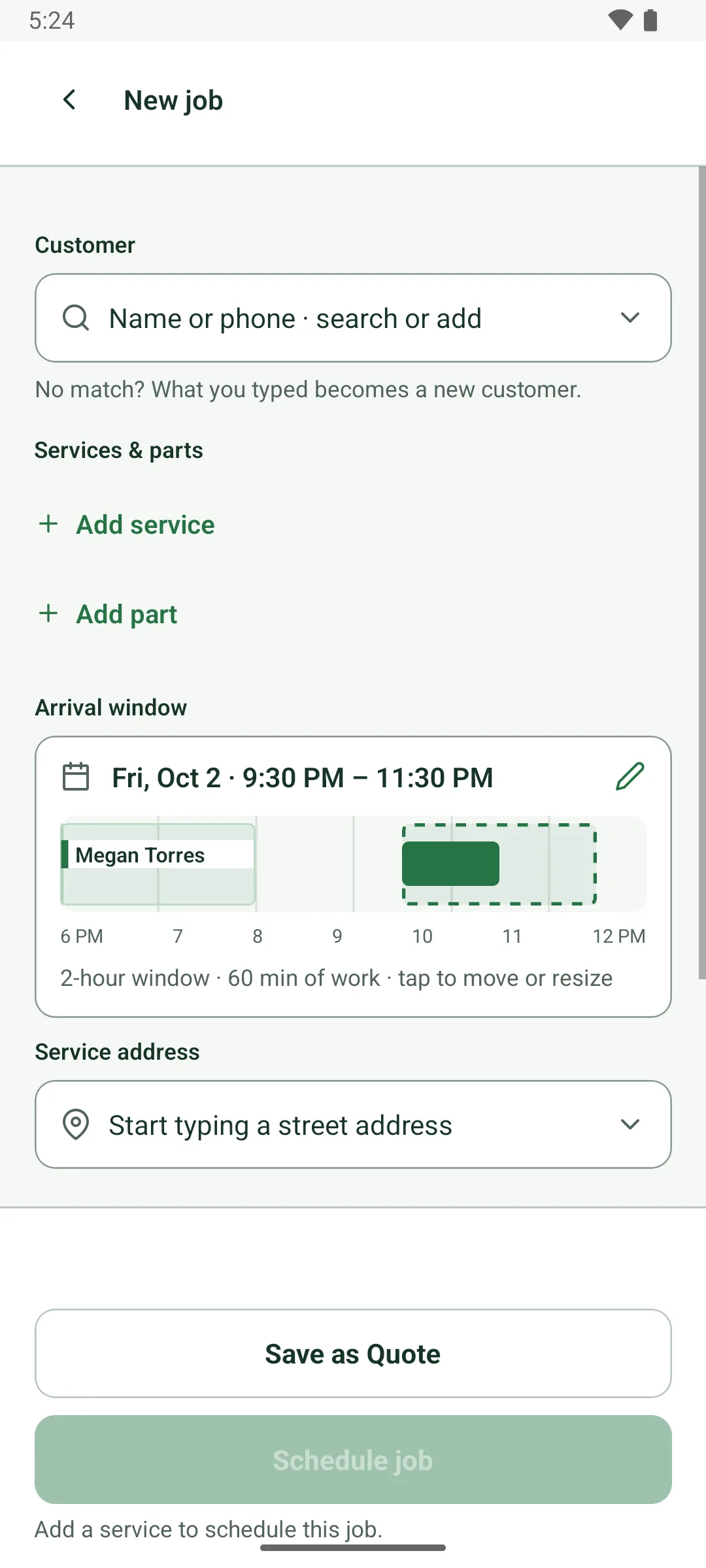
Drag the window to fitSee the day with your jobs and busy time, then drag or stretch the arrival window.
Pick 1h, 2h or 4h, change days, or set exact times.
On screen: “1h”, “2h”, “4h”, “Set exact times”
Overlaps flagged, not hiddenA window that overlaps another job or busy time shows a warning that names it.
A booked job whose work overlaps another smithworks job is tagged Needs review, with the reason.
On screen: “Needs review”
Work time adds itself upEach service's time times its quantity. Three rekeys at 60 minutes is 180.
Parts add no time, and driving is planned separately. Tap Work time to set it yourself, from 5 to 720 minutes.
On screen: “Work time”
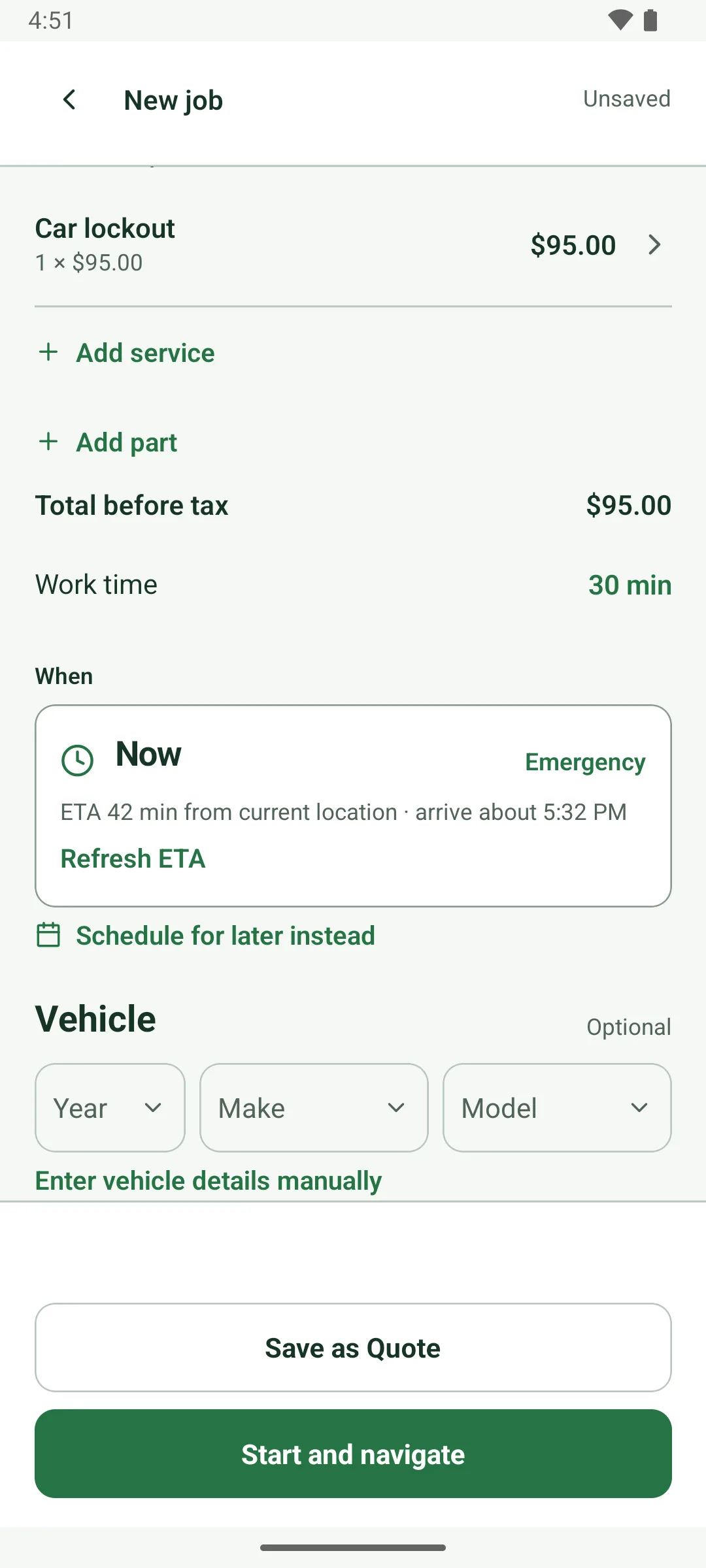
Emergency, scheduled, multi-dayEach service is Emergency, Scheduled or Multi-day. Emergency jobs start now, with an ETA from where you are.
smithworks warns when an upcoming customer's window may run late. Start and navigate saves the job and opens directions.
On screen: “Emergency”, “Scheduled”, “Multi-day”, “Start and navigate”
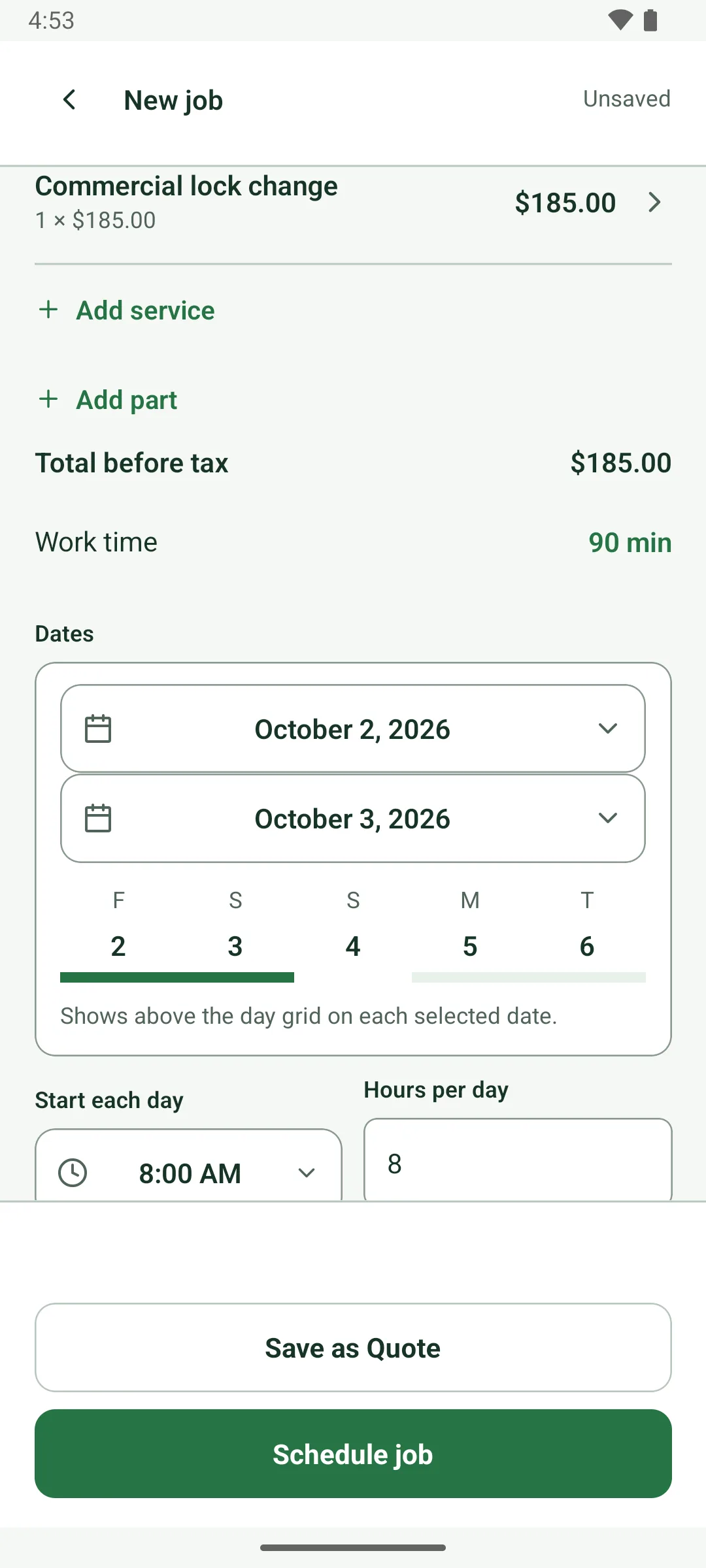
Multi-day jobsFor bigger installs, set the first and last day, a daily start time and hours per day.
A preview strip shows the plan and notes any other work on those dates.
On screen: “First day”, “Last day”, “Start each day”, “Hours per day”
Jobs on your Google CalendarScheduled jobs go on a separate smithworks appointments calendar, with the arrival window in each event.
Each event carries the service, customer and address. Multi-day jobs repeat daily, and cancelled jobs are removed.
On screen: “smithworks appointments”
Confirmations and remindersCustomers with an email get a confirmation when you book and a reminder the day before.
The email gives the arrival window, estimated work time, address and your number. Jobs booked more than a day out get the reminder 24 hours before the window.
Confirmations with a calendar inviteA designed confirmation email with a calendar invite the customer can add in one tap.
Moving the job sends a new confirmation that updates the same calendar event.
On screen: “You’re booked.”
Week strip and month pickerDots mark the days with jobs. Swipe between weeks, or tap the date for a month calendar.
On screen: “Choose date”
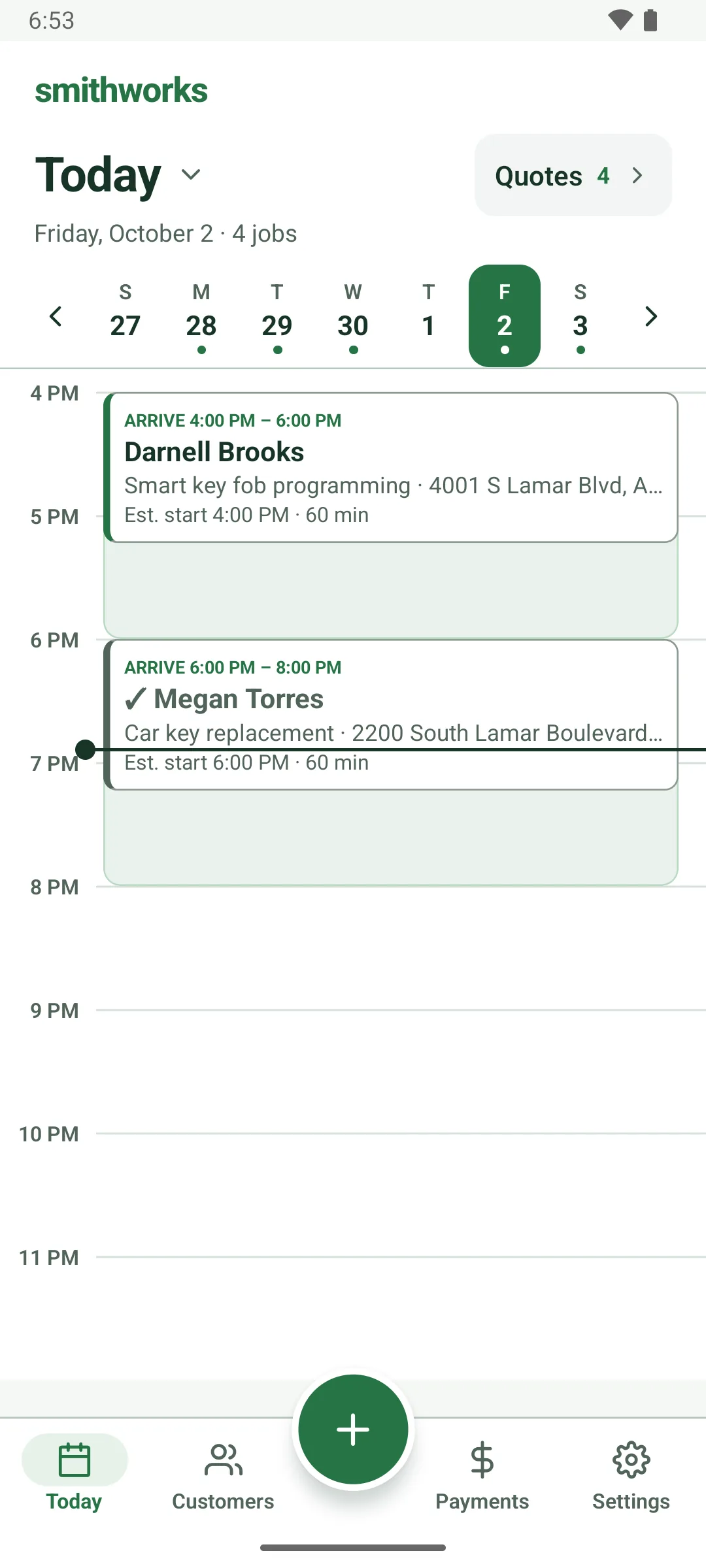
New job from anywhereThe green + opens New job from every main screen. Or hold an empty time on Today.
Holding an empty slot starts the job with that arrival window filled in.
On screen: “New job”
Status in wordsScheduled, Completed, Cancelled or Needs review, written out instead of color-coded.
Jobs that haven't uploaded yet say so: Saved on phone · Sync pending.
On screen: “Scheduled”, “Completed”, “Cancelled”, “Needs review”
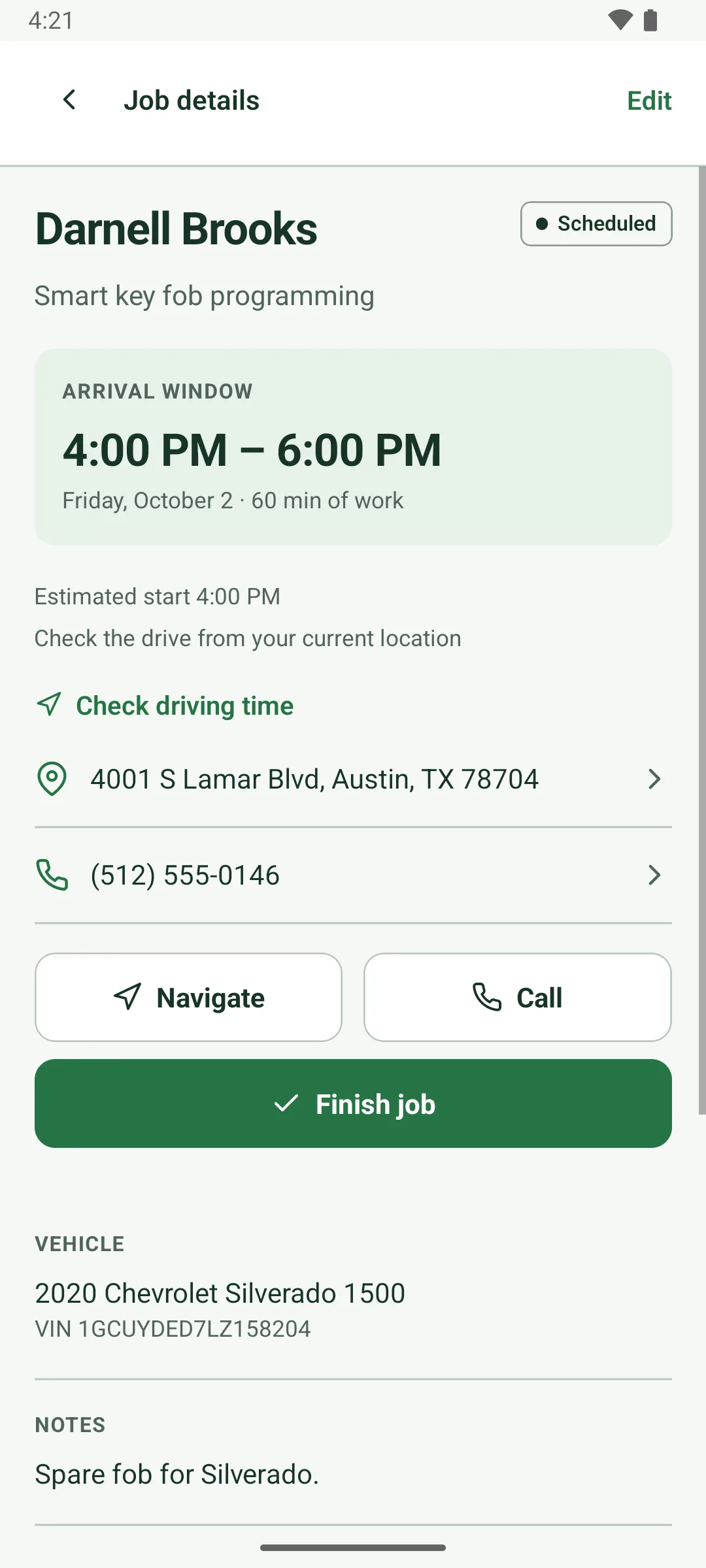
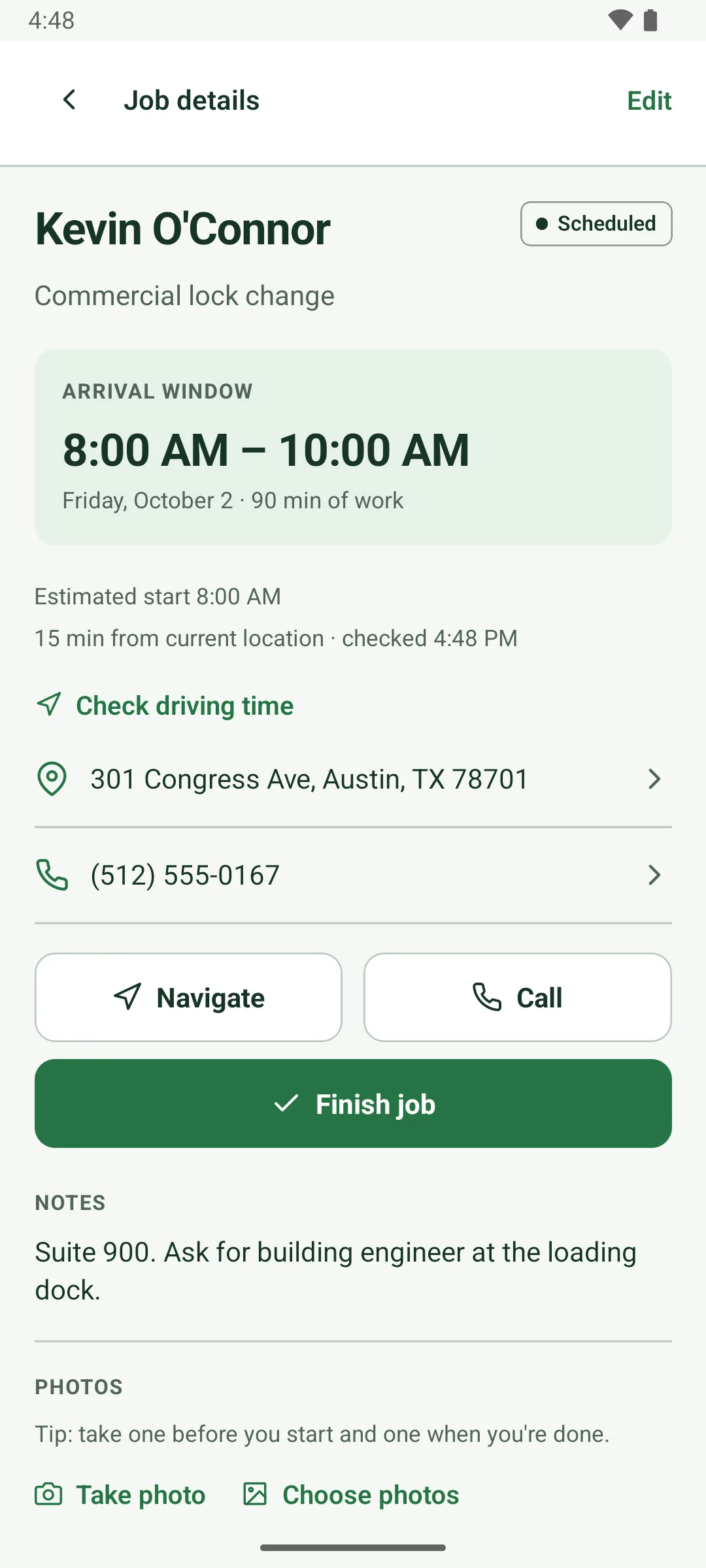
Check drive time from hereTap Check driving time on a job to see the drive from where you're standing.
smithworks reads your location once, only when you tap, and never tracks you in the background.
On screen: “Check driving time”
Edit, reschedule, cancelChange the window, address, vehicle or notes. Agreed price lines stay as agreed.
Cancel job asks once, then takes the job off your schedule.
On screen: “Edit job”, “Save changes”, “Cancel job”
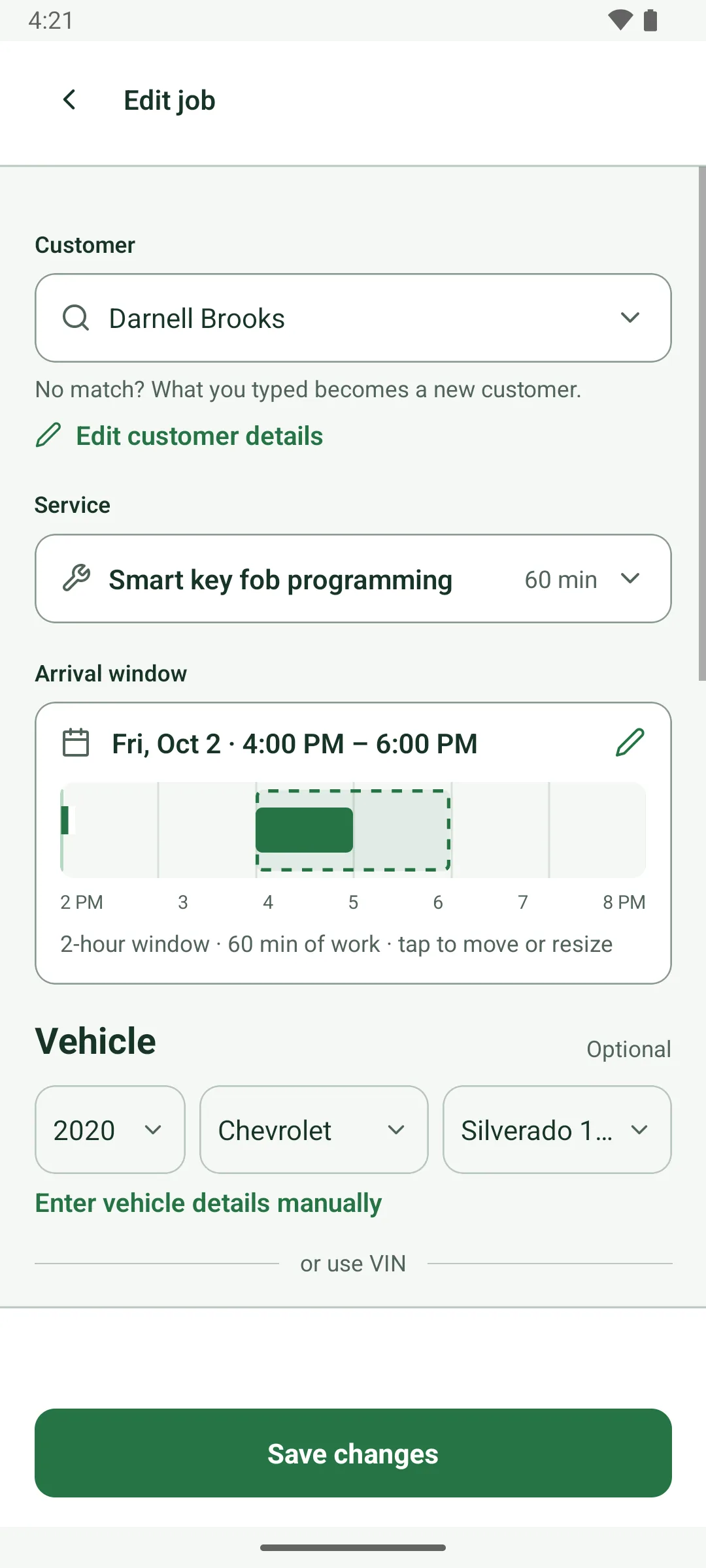
Buffers around meetings and drivesA calendar buffer keeps you from arriving the minute a meeting ends. A travel buffer pads drives.
The external calendar buffer is 30 minutes unless you change it.
On screen: “External calendar buffer (minutes)”, “Travel safety buffer (minutes)”
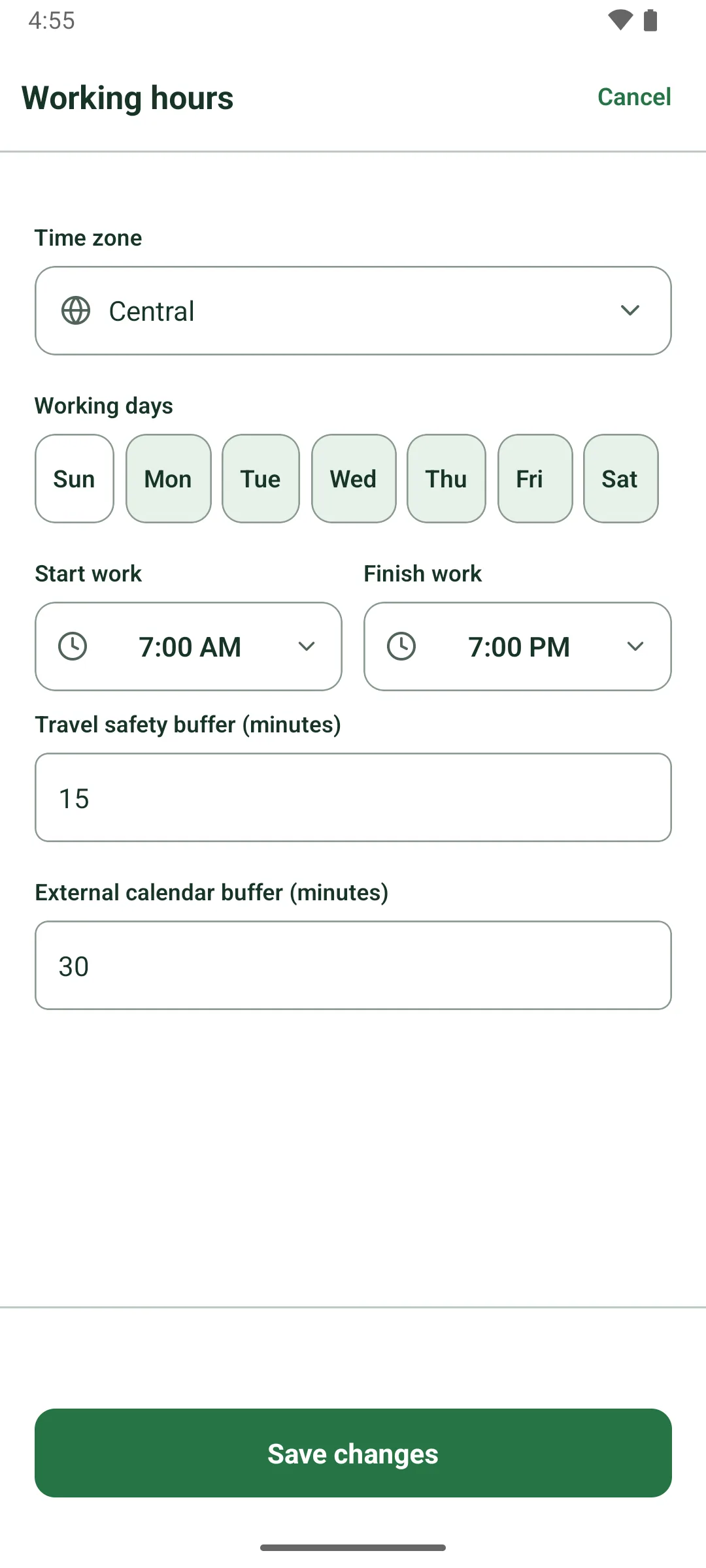
Busy time that never guessesBusy times work offline, new clashes get flagged, and a time it can't check never counts as free.
Saved busy times are labeled when you're offline or they may be out of date. A background check flags upcoming jobs that now clash with your Google Calendar.
On screen: “Google Calendar overlaps this job.”
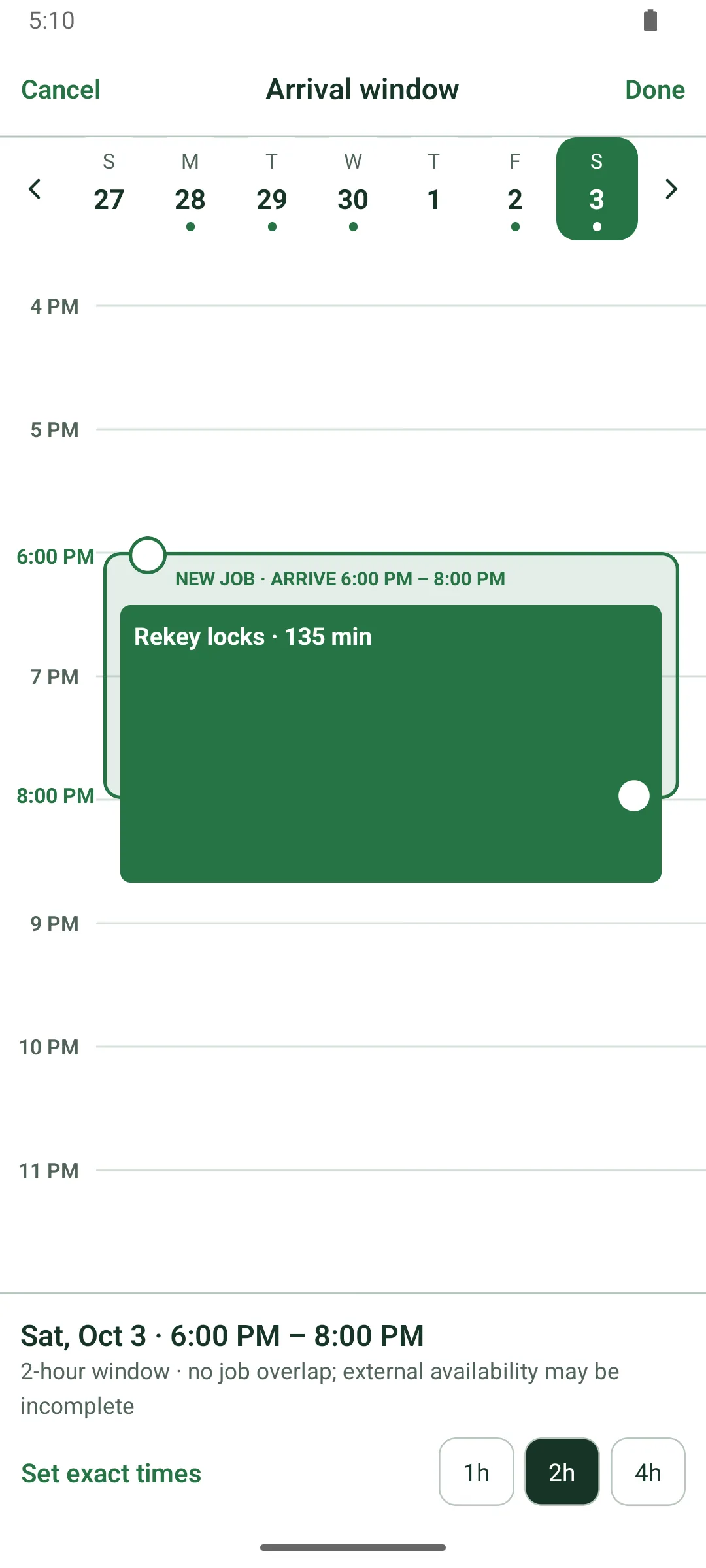
Book at any hourLate call? Suggested windows run from now until midnight, outside business hours too.
Business hours still limit online booking.
Disconnect means disconnectedDisconnecting Google Calendar removes smithworks' access at Google and clears the busy times it saved.
Your smithworks appointments calendar stays in Google until you delete it.
On screen: “Disconnect Google Calendar”
Cancellation email to customersCancel a confirmed appointment and the customer gets an apology and a rebooking link. The invite is withdrawn.
The cancel prompt tells you this before anything is sent.
On screen: “Choose another time”
Do the work
Job details, vehicles and VINs, photos, offline.
15 features
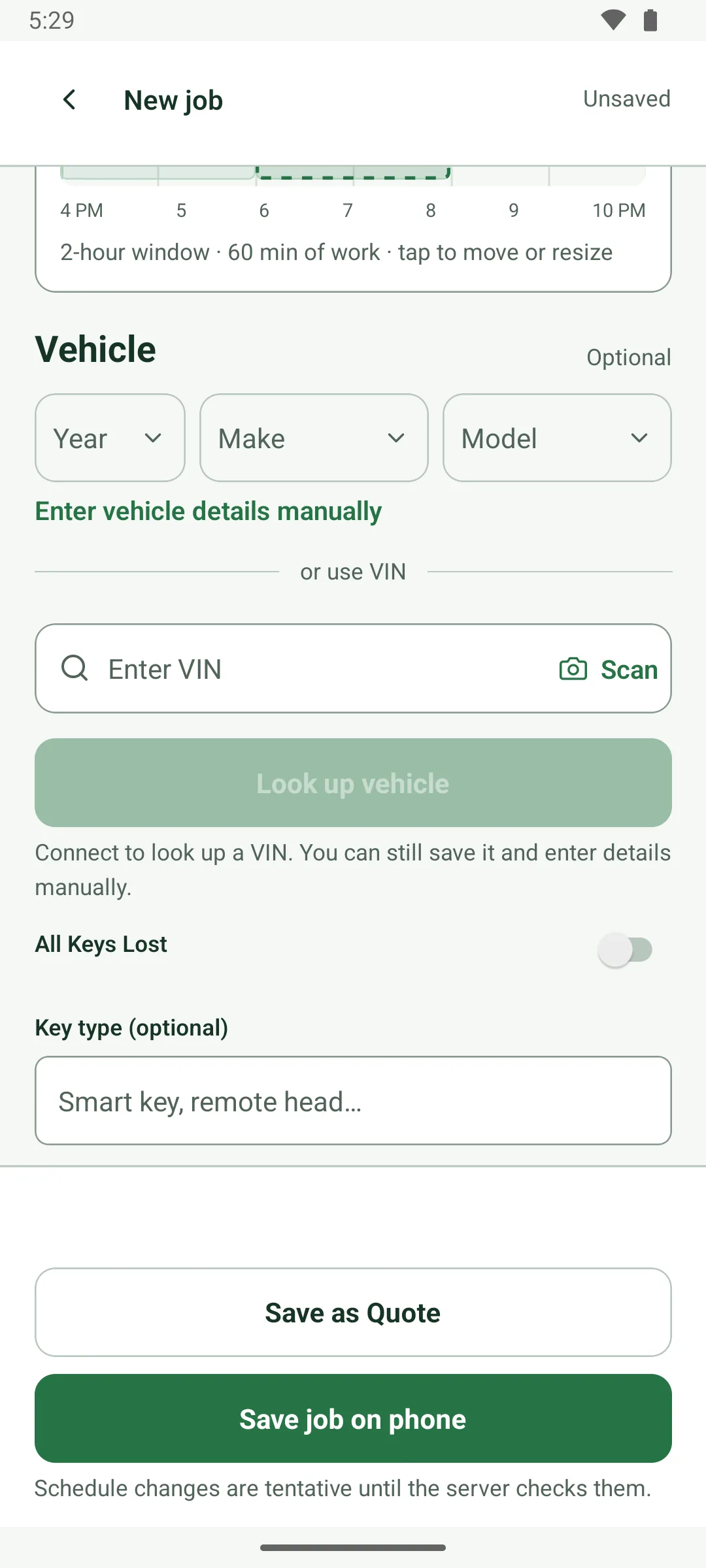
VIN scan and lookupScan the VIN barcode or type it. With signal, year, make and model fill in from NHTSA data.
Scan rejects anything that isn't a 17-character VIN, and a lookup only fills empty fields, so it never overwrites what you entered.
On screen: “Scan”, “Look up vehicle”, “Fill empty details”
Keeps working when signal dropsCustomers, quotes, jobs, finished work and the payments you record save on the phone and sync later.
Changes wait on the phone until they sync, and a change sent twice is applied once. Sending email and address search need a connection.
On screen: “Save job on phone”, “Offline · Saved on phone”, “Retry sync”
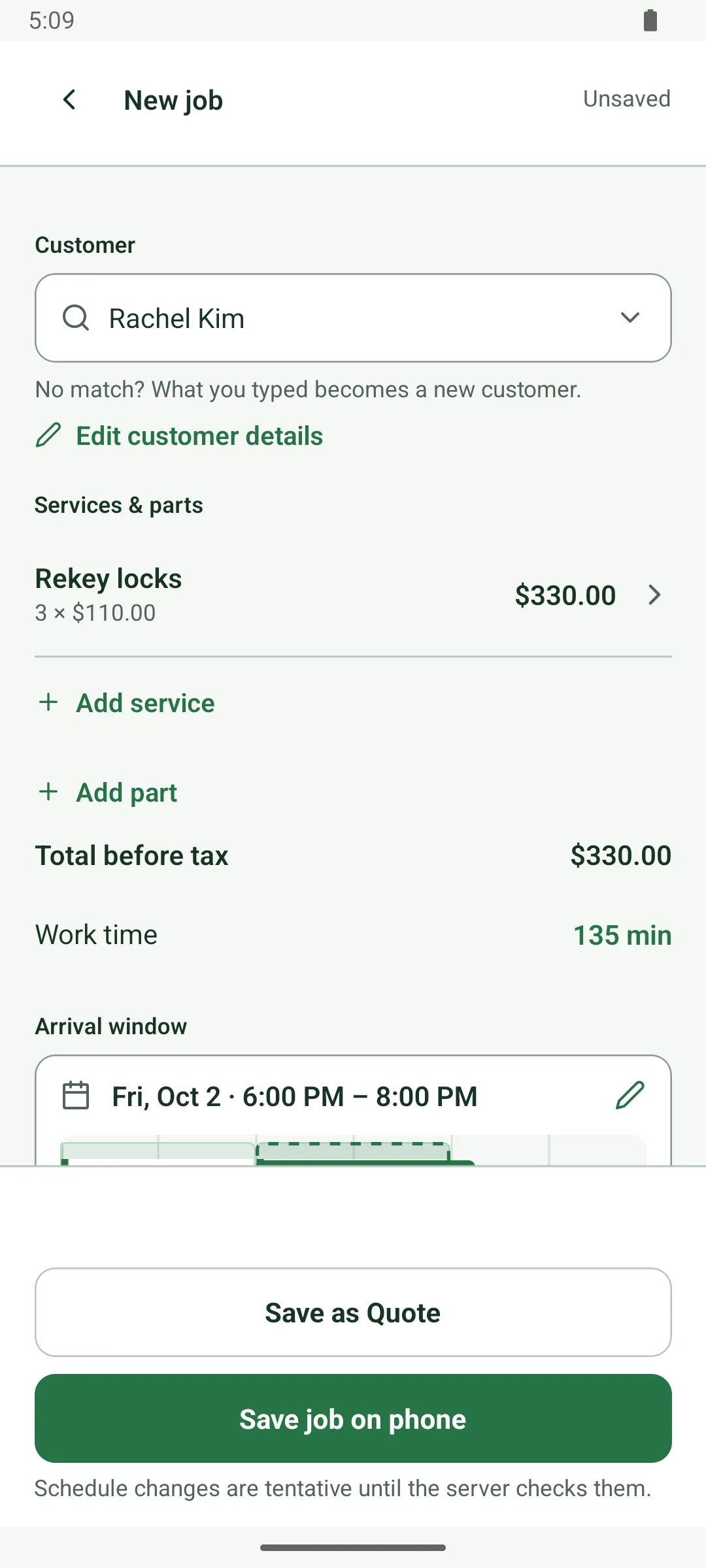
Job page with everythingCustomer, arrival window, address, vehicle, notes and price lines on one page.
The address and phone are tappable, and the window shows in large type with the date and minutes of work.
On screen: “Job details”
Navigate and CallNavigate opens Google Maps directions. Call dials the customer.
On screen: “Navigate”, “Call”
Year, make, model, then VINAutomotive jobs ask for year, make and model first, then the VIN, the way the call goes.
Common makes come first, any manufacturer is searchable, and models are listed for that make and year from NHTSA data. Or type them yourself.
On screen: “Vehicle year”, “Vehicle make”, “Vehicle model”
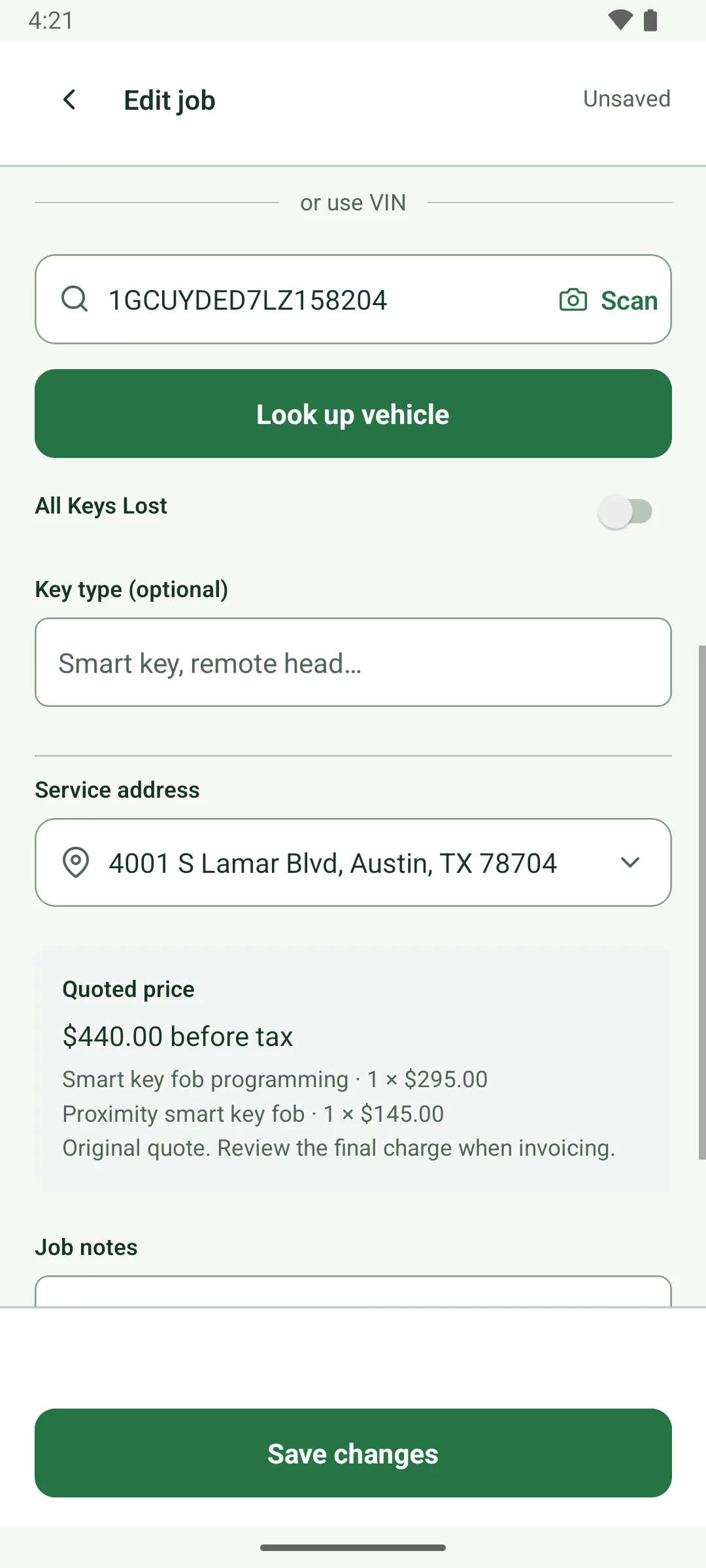
All Keys Lost, key typeFlag All Keys Lost and the key type, like smart key or remote head, on the job.
Both are saved with the vehicle and shown on the job page and the invoice screen. The customer's invoice lists the vehicle and VIN.
On screen: “All Keys Lost”, “Key type (optional)”
Big controls, plain wordsLarge buttons and fields, statuses written out in words, and screen-reader labels on buttons.
Slide animations switch off when your phone's reduce-motion setting is on.
Before and after photosTake or choose photos on the job. They upload when you have signal.
Photos are shrunk on the phone, wait while you're offline, then upload to private storage on the next sync.
On screen: “Take photo”, “Choose photos”
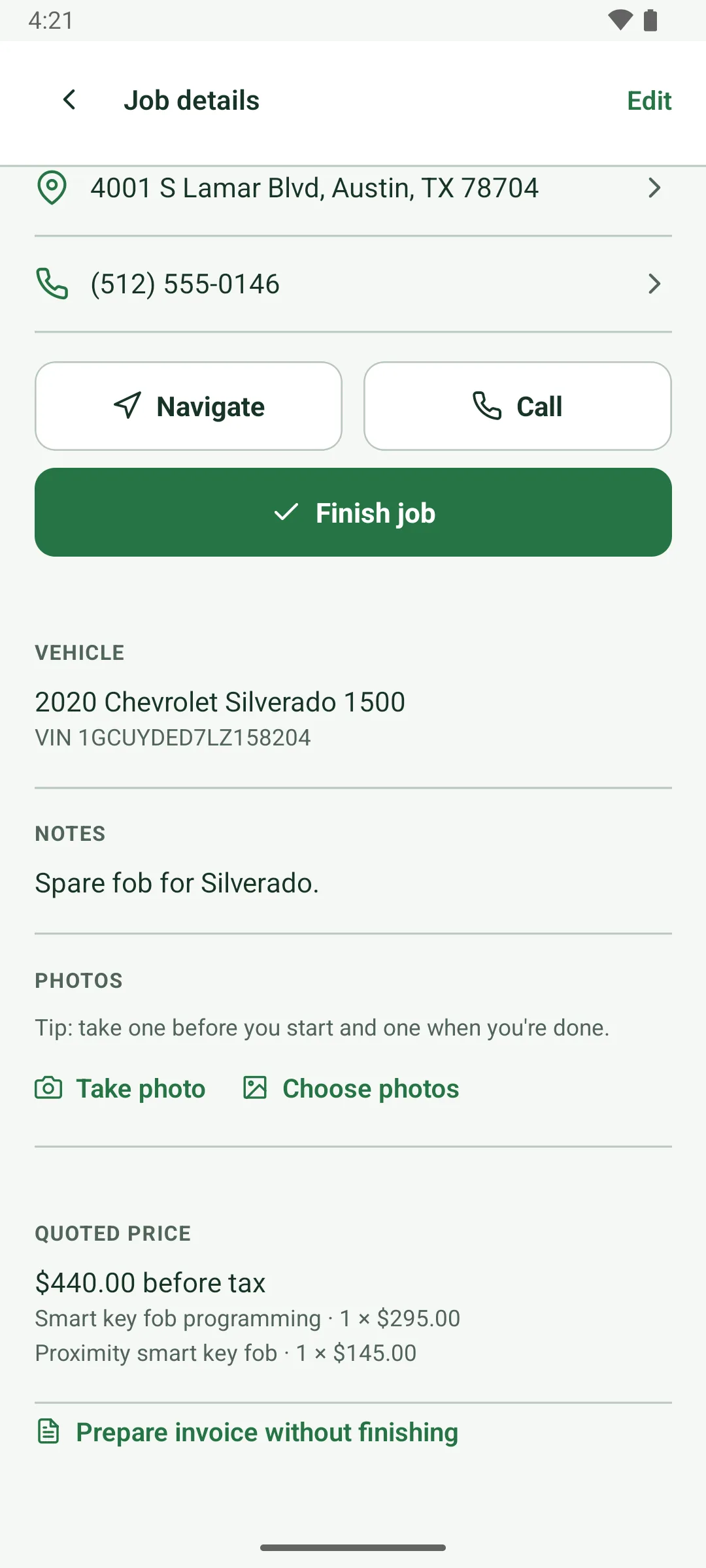
Job notesAccess, parking, where the keys are: notes on the job, never printed on invoices.
On screen: “Job notes”
Vehicle lists work offlineThe makes list ships with the app, and models and VINs you've looked up stay on the phone.
New VIN lookups need signal; you can still save the VIN and fill in the details by hand.
See what's syncedA header pill reads Up to date, Syncing, pending or Offline. Pull down to sync.
smithworks also syncs when it's back online or reopened, and the Account sheet shows changes waiting, with Sync now.
On screen: “Up to date”, “Syncing…”, “Offline · Saved on phone”
Newer work isn't overwrittenIf an offline change clashes with newer work, it's held on your phone for review.
Review pending changes lets you retry the sync, or discard the local change and keep the cloud version.
On screen: “Review pending changes”, “Retry sync”
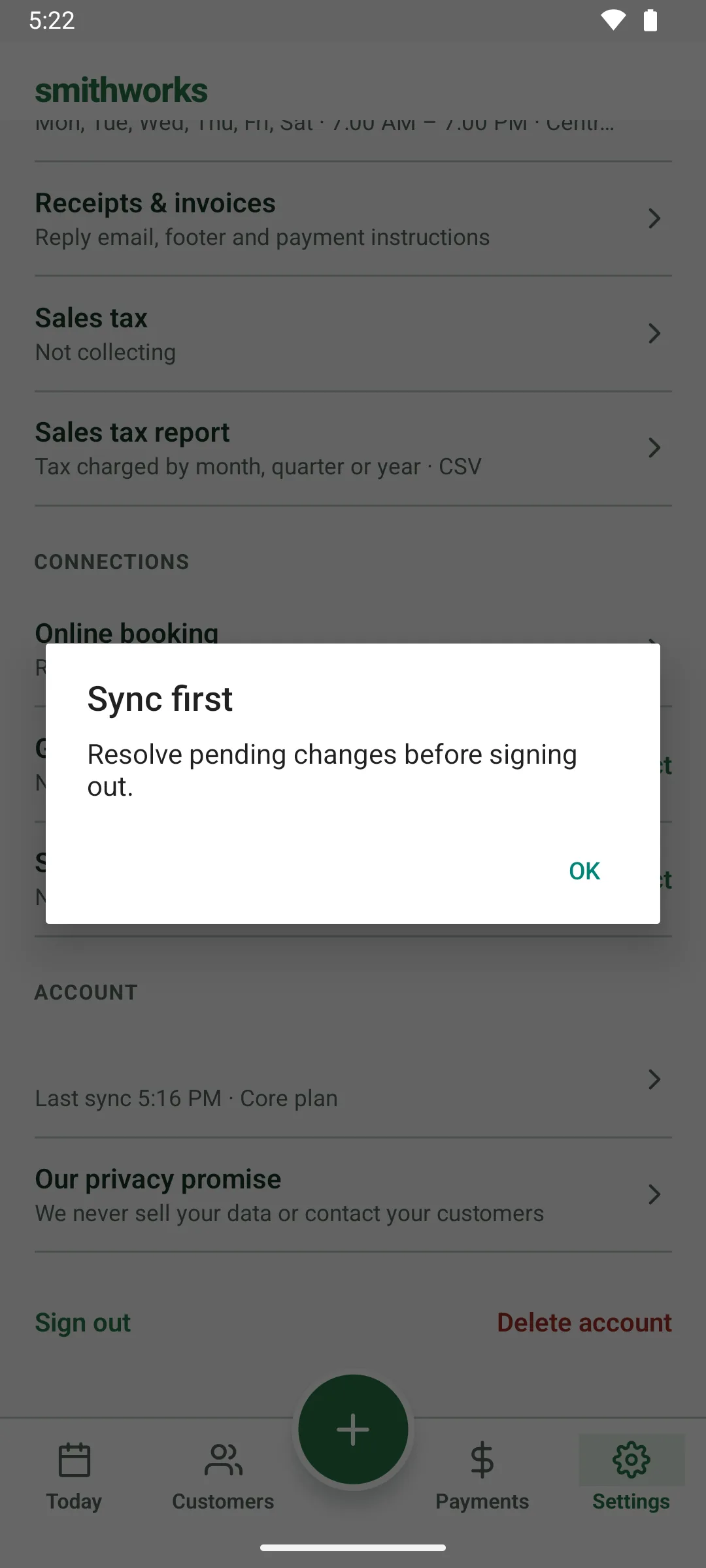
Sign-out waits for syncYou can't sign out while changes are still waiting to sync, so offline work isn't lost.
On screen: “Sync first”
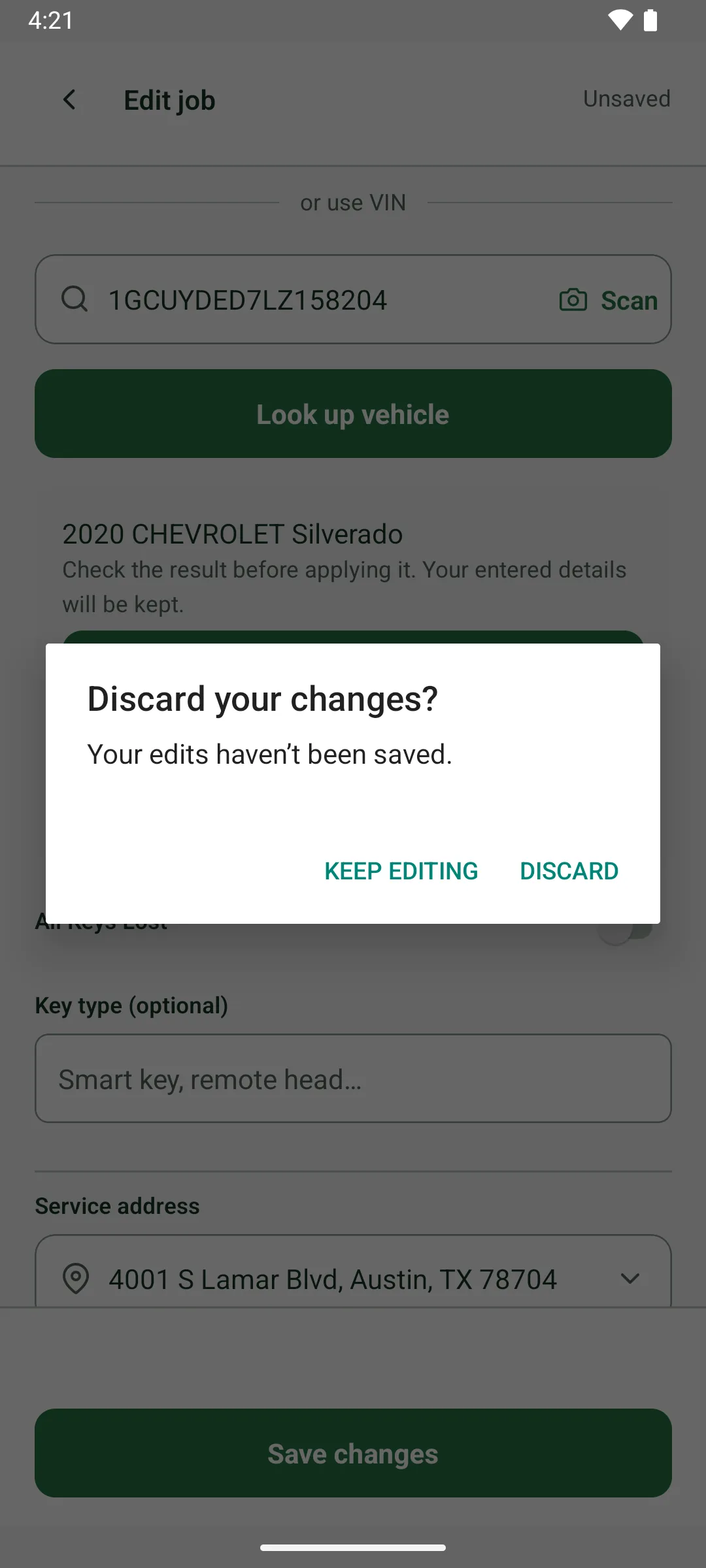
No lost editsEditors show Unsaved and ask before discarding when you back out, Android back button included.
On screen: “Unsaved”
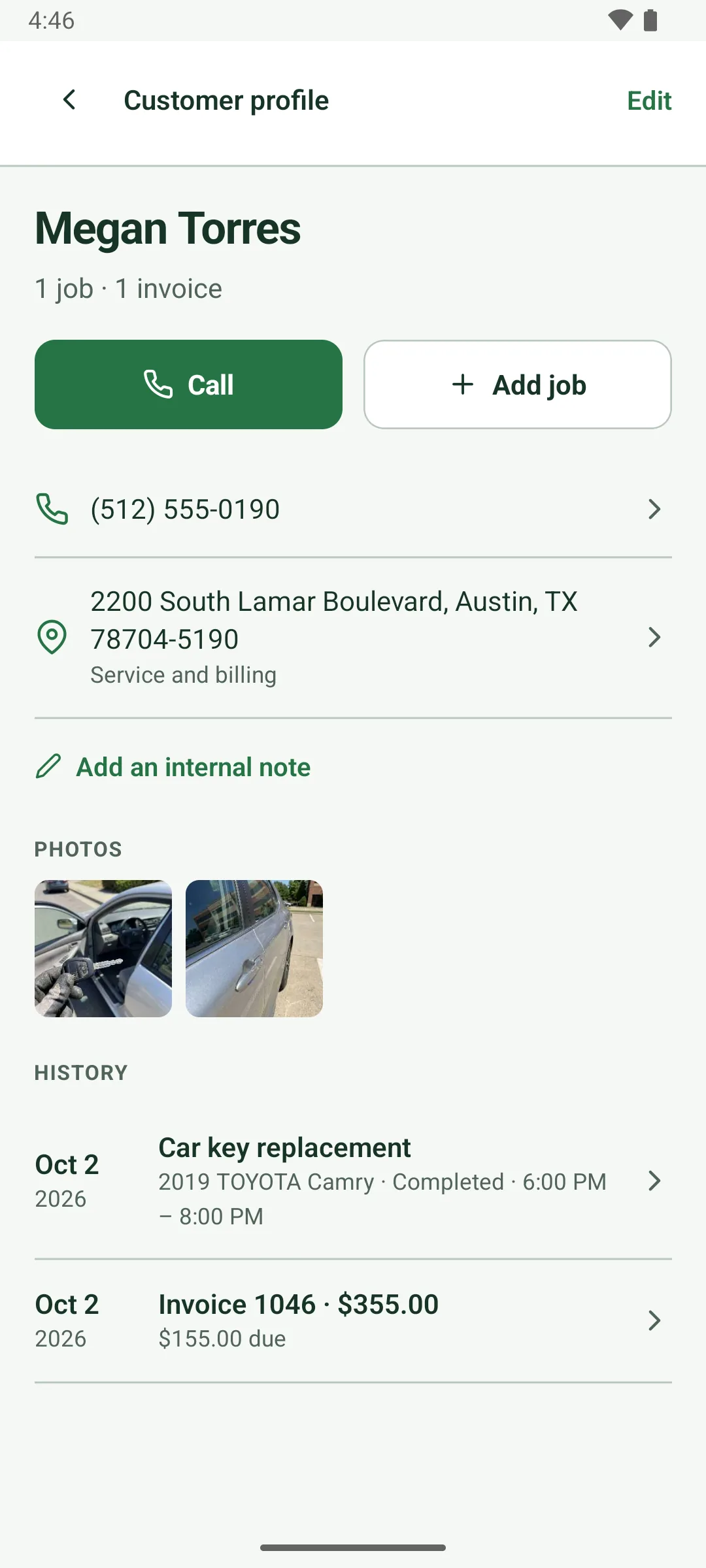
A customer's photos togetherA customer's profile gathers photos from all their jobs, newest first.
Tap one to see it full size with the job and date. Photos load when you have a connection.
Get paid
Invoices, payments, receipts and tax.
25 features
Finish, invoice, paymentFinish the job and the invoice starts from the agreed lines. Add what you used on site.
Set the tax rate, choose how they're paying and issue it. The completion, invoice and payment are saved together.
On screen: “Finish job”, “Charges”, “Save as draft instead”
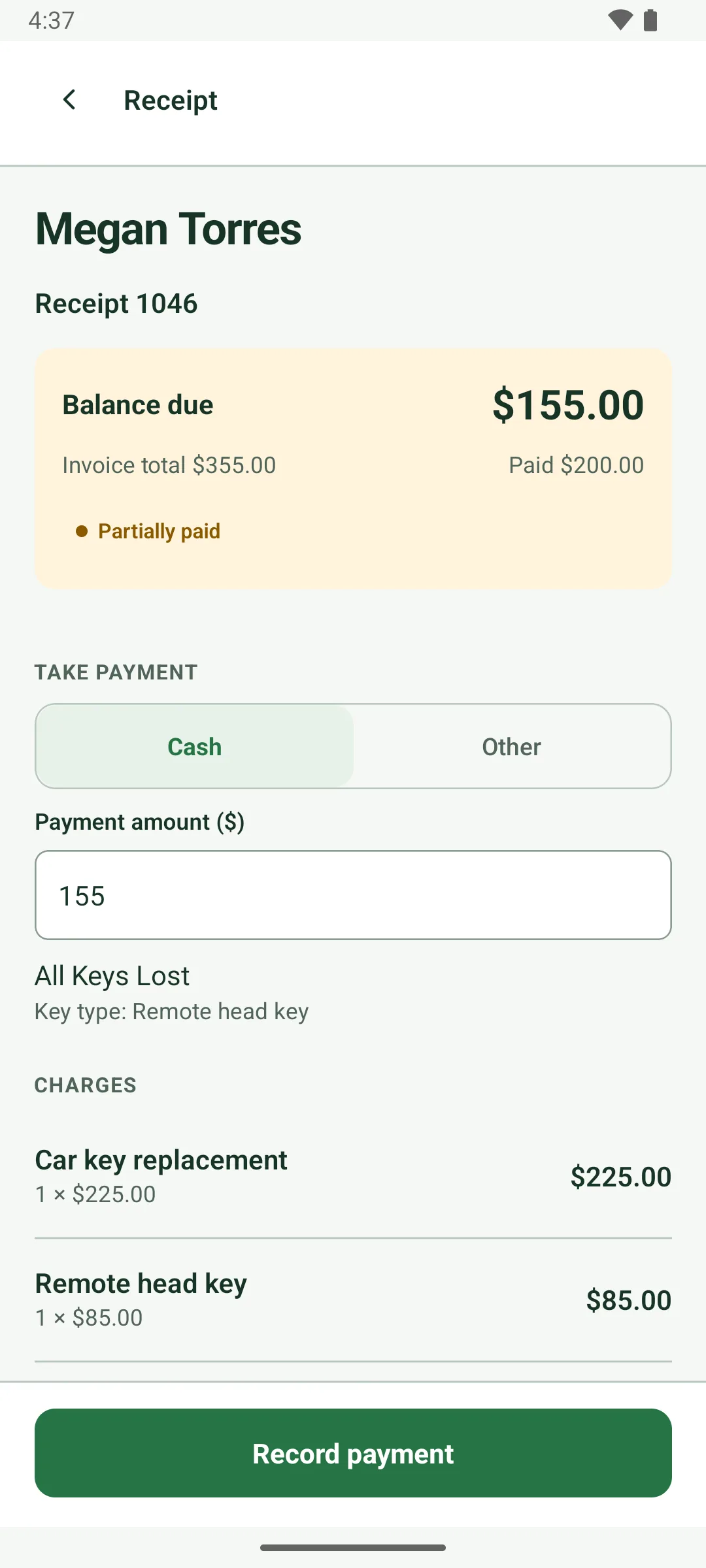
Partial payments, clear balancesTake part now and the rest later. The balance due stays front and center.
The invoice shows Balance due, Invoice total and Paid. Record more payments later; the job page shows the balance too.
On screen: “Partially paid”, “Balance due”, “Record payment”
Invoices and receipts by emailEmail the invoice or a receipt from the invoice screen, sent in your business name.
Replies go to the reply email you set. Each receipt covers one payment, with its own number, earlier payments and the balance remaining.
On screen: “Email invoice”, “Email receipt”
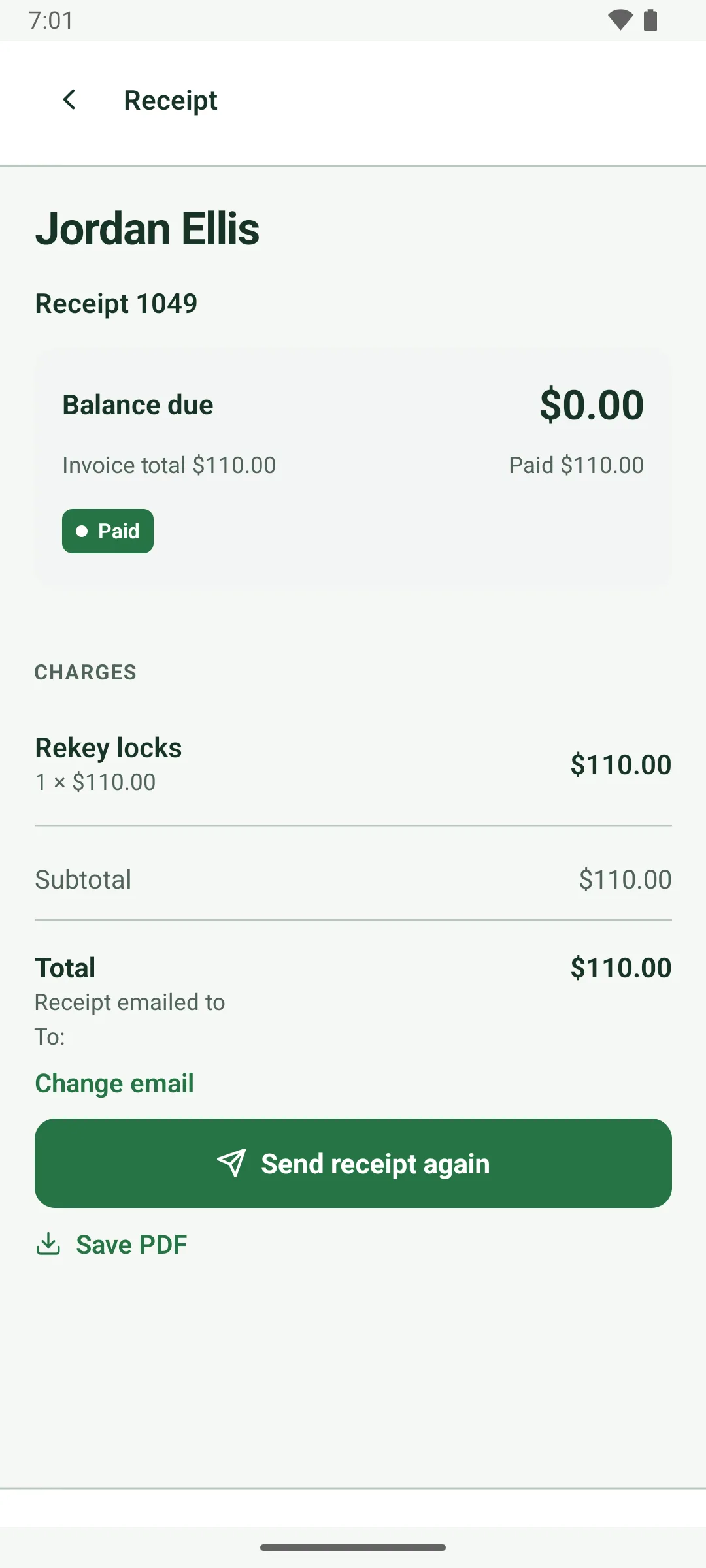
Scan-to-pay QR codeShow a QR code. The customer pays by card through Square on their own phone.
They can add a tip there. Your screen switches to Payment received, and the payment is recorded on the invoice by itself.
On screen: “Show QR code to pay”, “Payment received”
Tap to Pay, card readerBuilt for Tap to Pay on Android and a paired Square Reader, with a tip screen first.
The customer picks 15, 20 or 25 percent, or No tip, then taps or inserts their card.
On screen: “Tap or insert card”, “Add a tip?”
Cash first, Pay later lastRecord cash or another payment you've already received. Cash is the default; Pay later sits last.
Your receipt shows any balance still owed.
On screen: “Cash”, “Pay later”
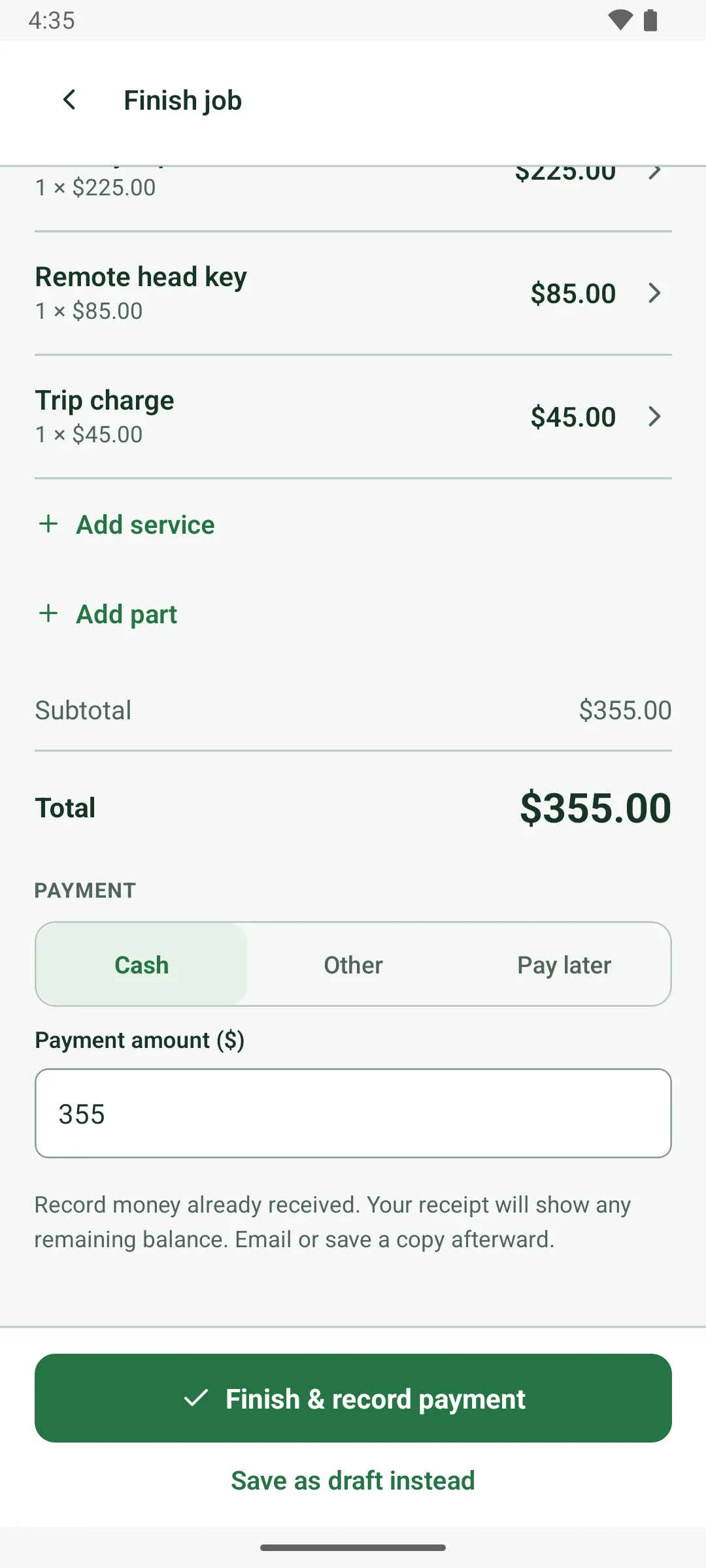
Pay laterIssue the invoice unpaid for customers who pay later, then record the payment when it comes in.
Useful for commercial accounts: email the invoice now, and the balance stays on your list until it's paid.
On screen: “Pay later”, “Record payment”
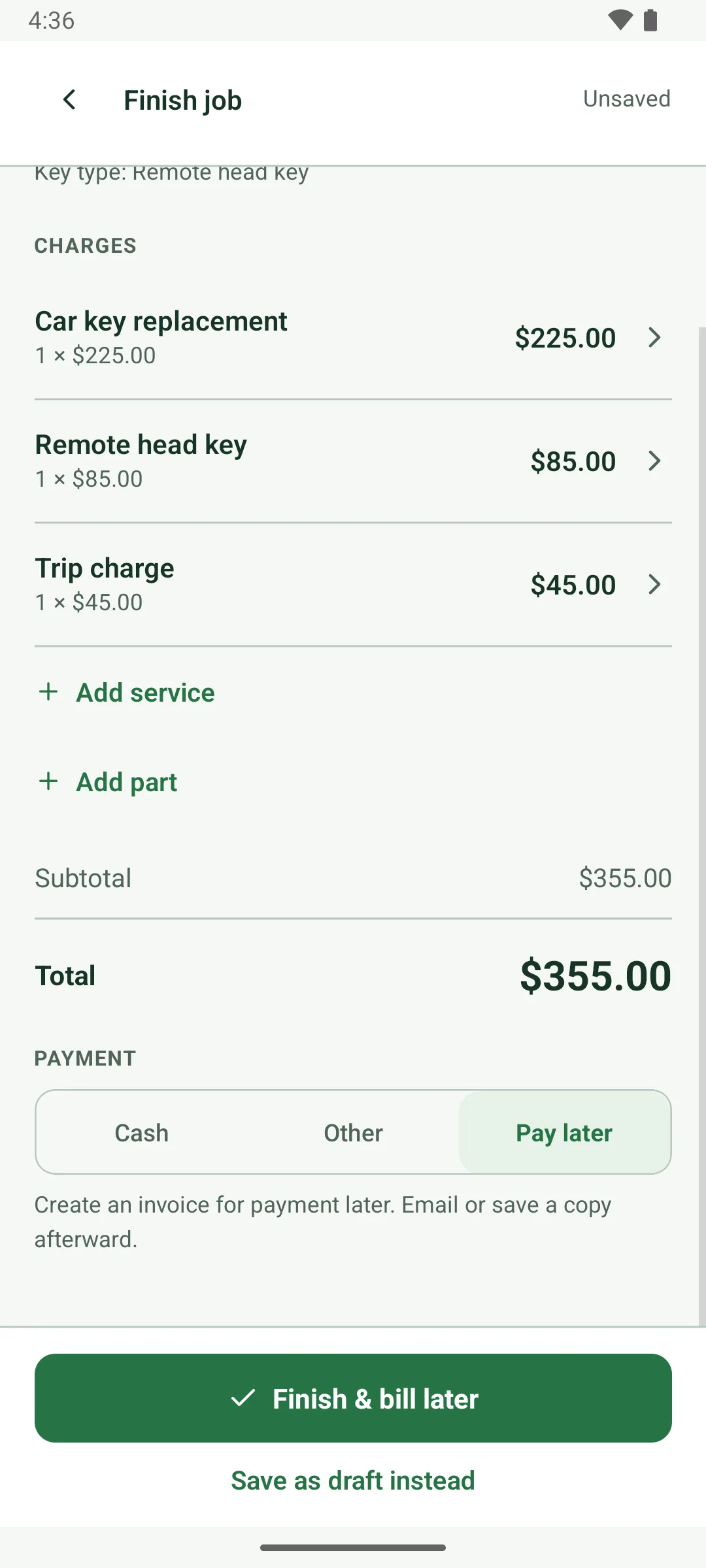
Who still owes youInvoices newest first, total outstanding on top, with filters for Unpaid and Partially paid.
Each row shows a status and the amount due. Filter by All, Unpaid, Partially paid, Paid or Draft.
On screen: “Unpaid”, “Partially paid”, “Paid”, “Draft”
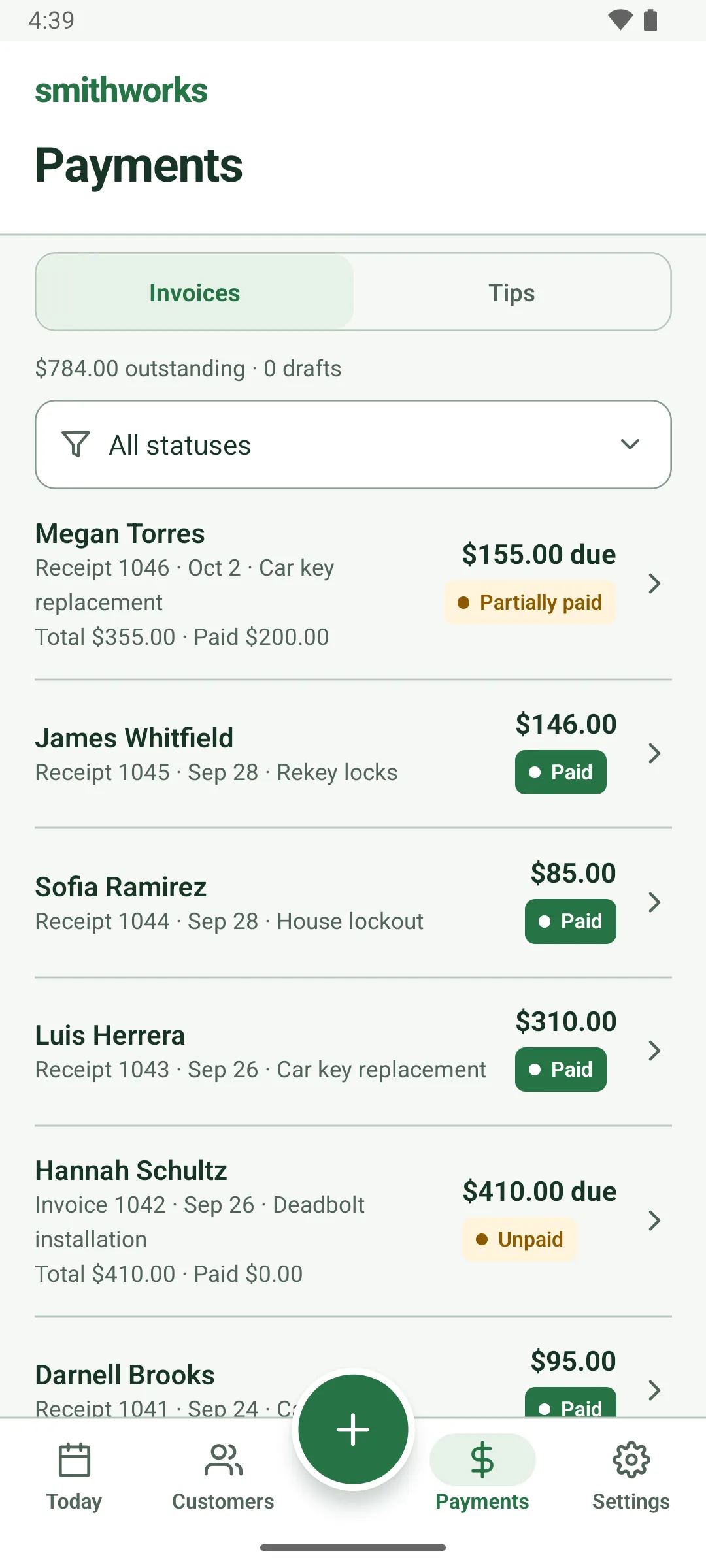
Save PDFSave any invoice or receipt as a PDF to a folder you pick on your phone.
On screen: “Save PDF”
Invoices that read clearlyBusiness, customer, service location, vehicle and VIN, charges, tax, payments and balance, laid out clearly.
Your footer and payment instructions print too. Internal notes never appear.
On screen: “Paid in full”, “Balance remaining”
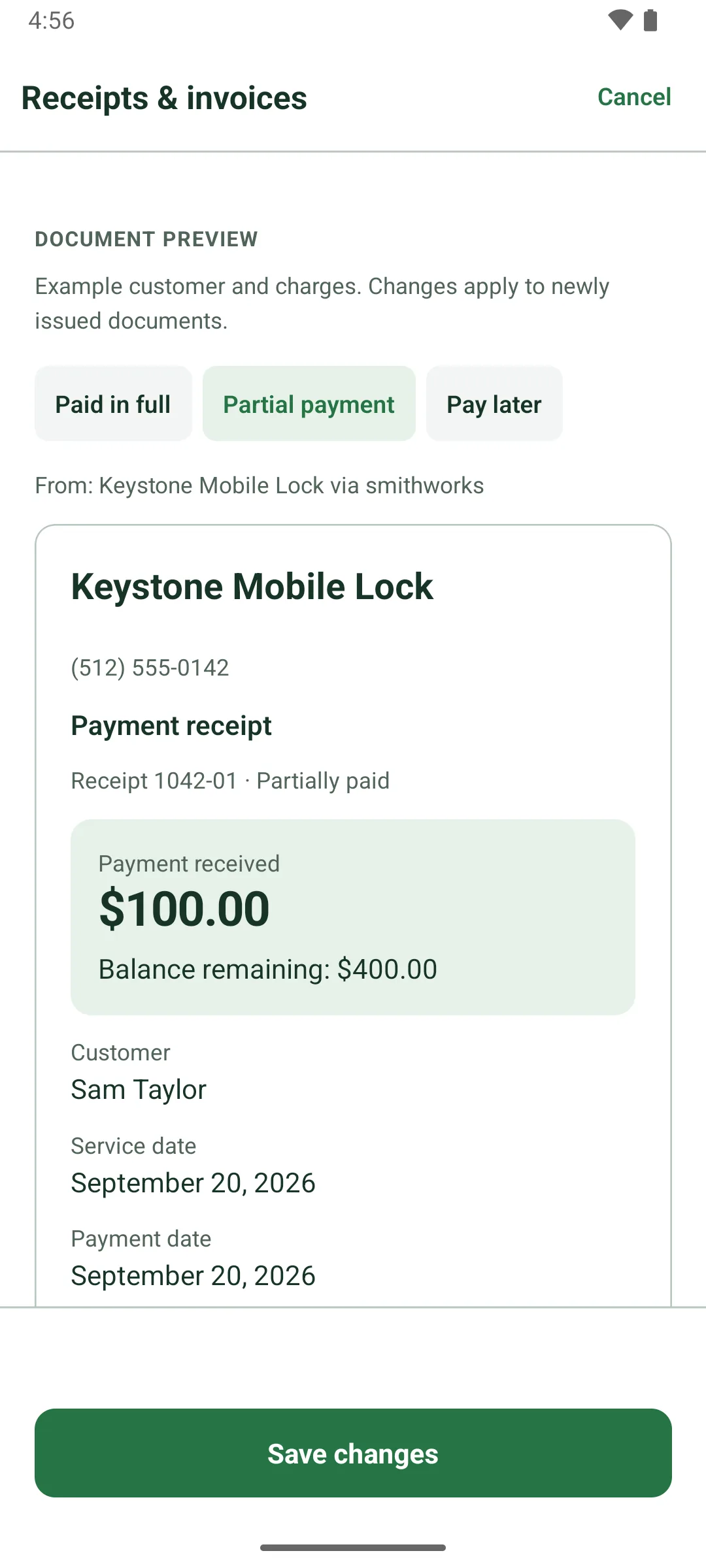
Record payment when signal dropsLost signal? Finish the job and record cash. It syncs when you're back and is never recorded twice.
On screen: “Pending sync”
Tax only what's taxableMark services and parts taxable by default and switch any line. Invoices show what was taxed.
Turn sales tax on or off. Lines without tax are marked Not taxed.
On screen: “Collect sales tax”, “Taxable by default”, “Not taxed”
Help article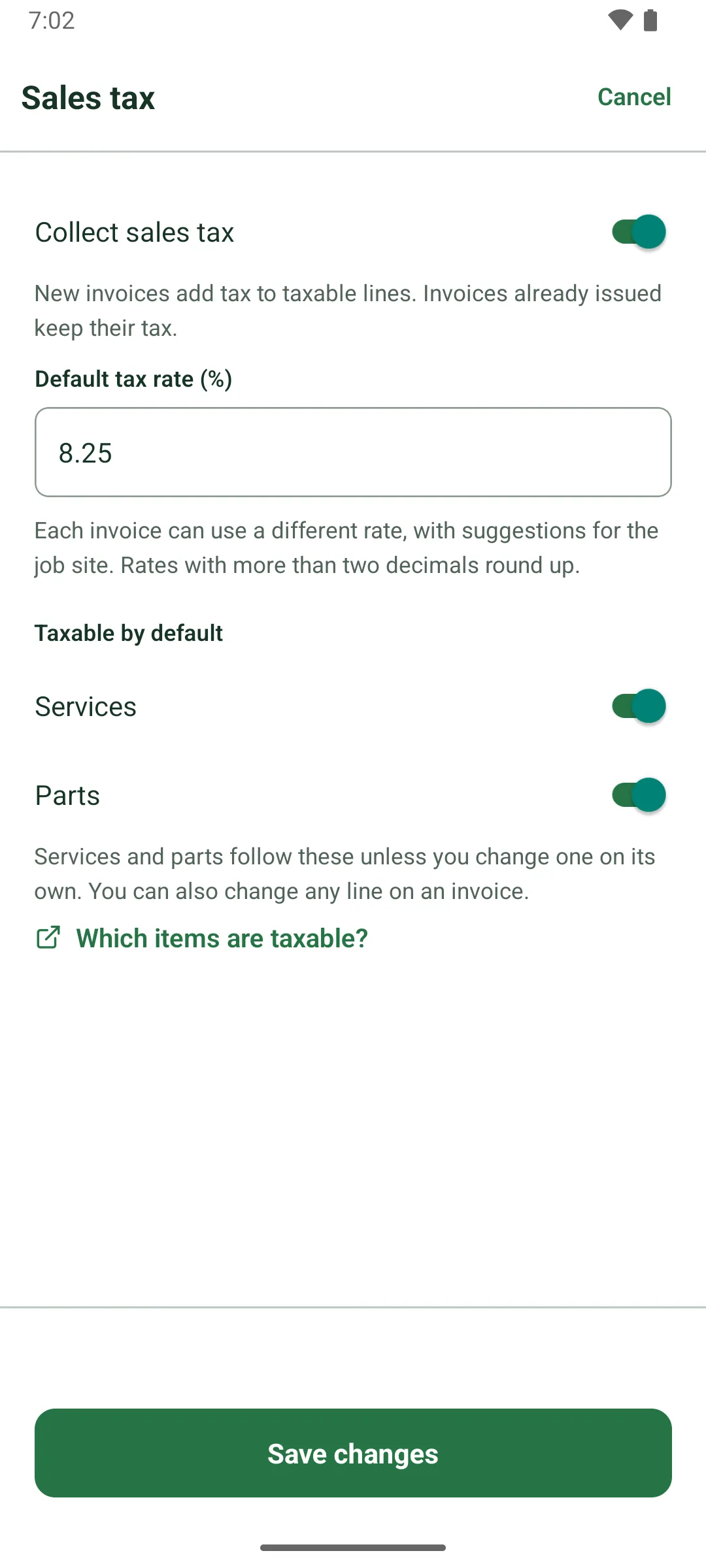
Suggested tax rate by ZIPThe tax rate sheet suggests an estimated rate for the job site's ZIP and your business ZIP.
Nothing changes until you tap Use, and you confirm the rate for your state. Rates are estimates from monthly ZIP rate tables.
On screen: “Suggested rates”
Help article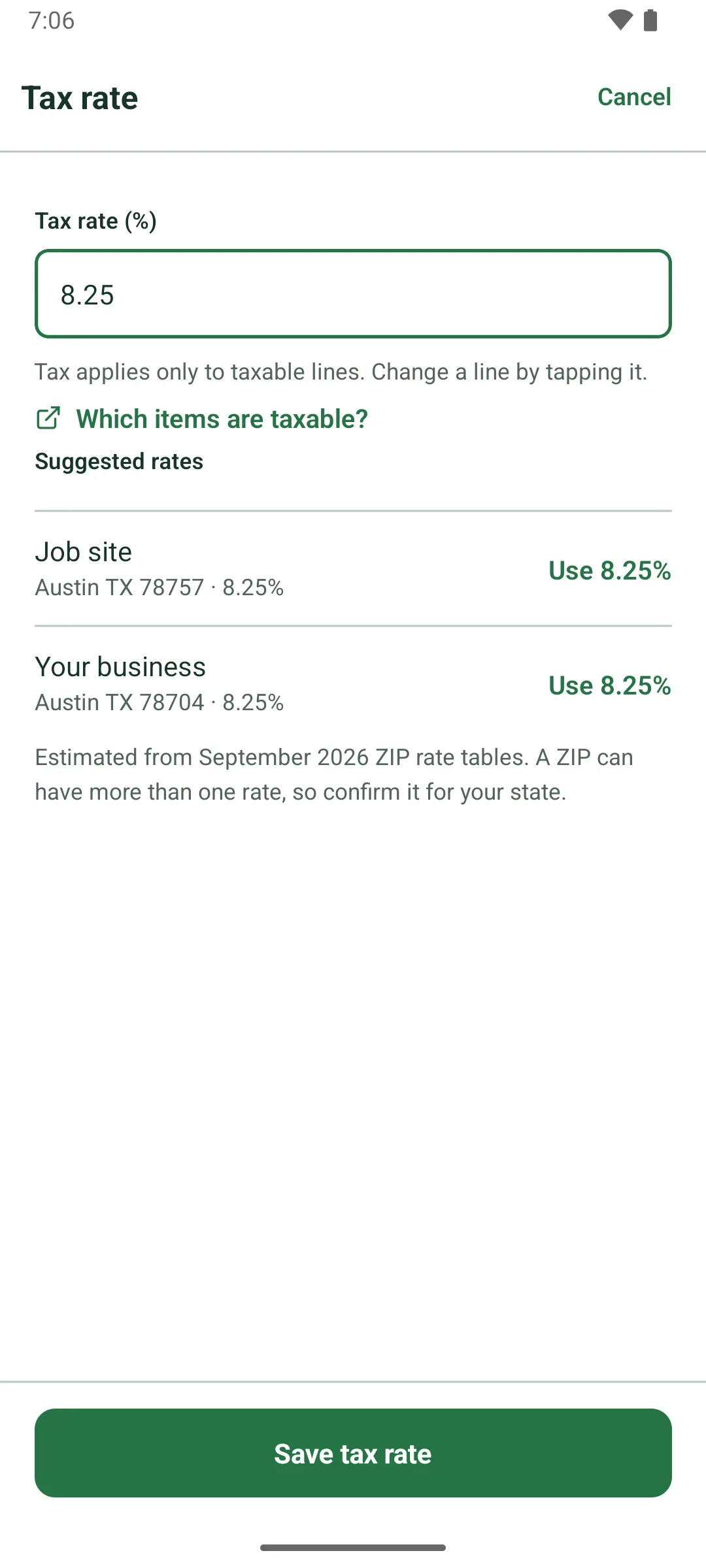
Sales tax report and CSVTax charged by month, quarter or year, broken down by rate, with a CSV for your accountant.
On screen: “Sales tax report”
Help article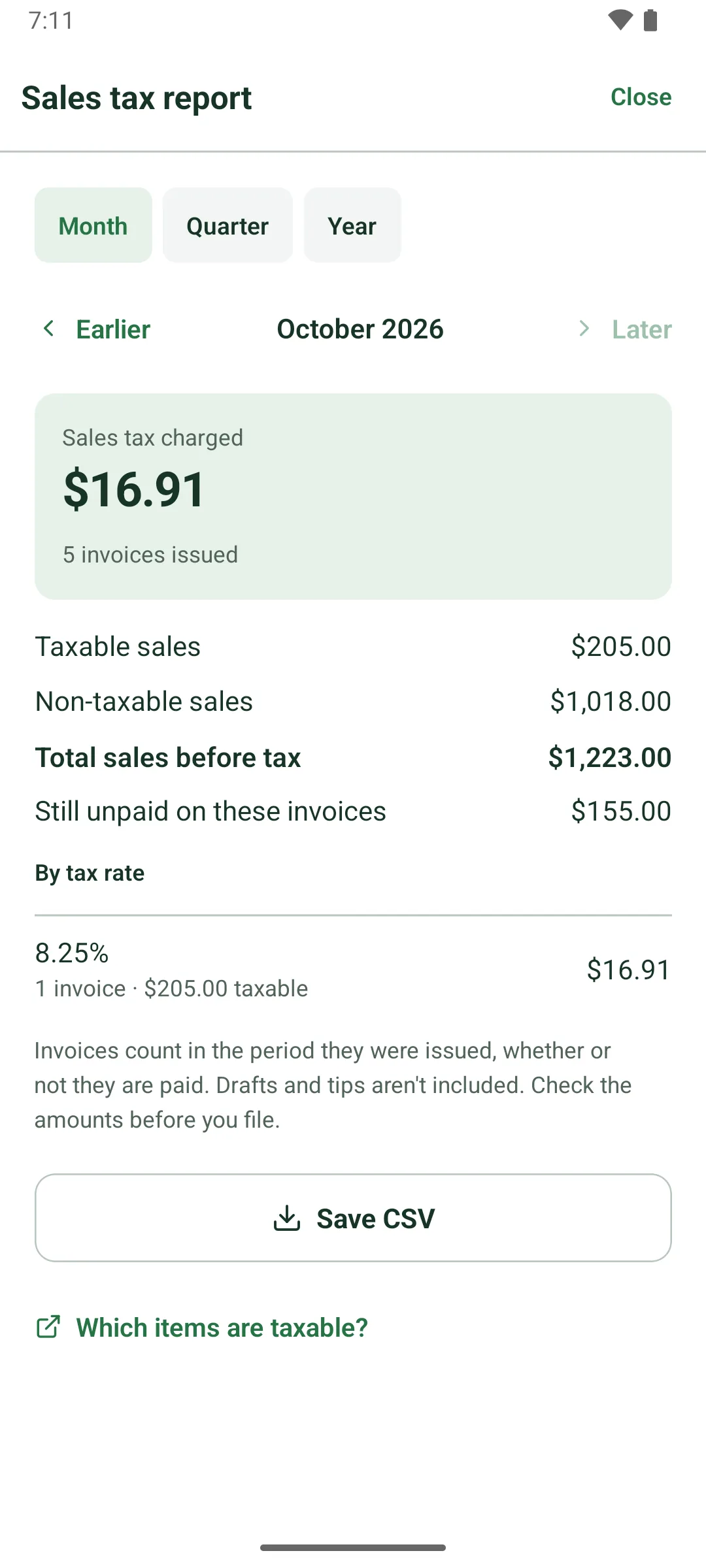
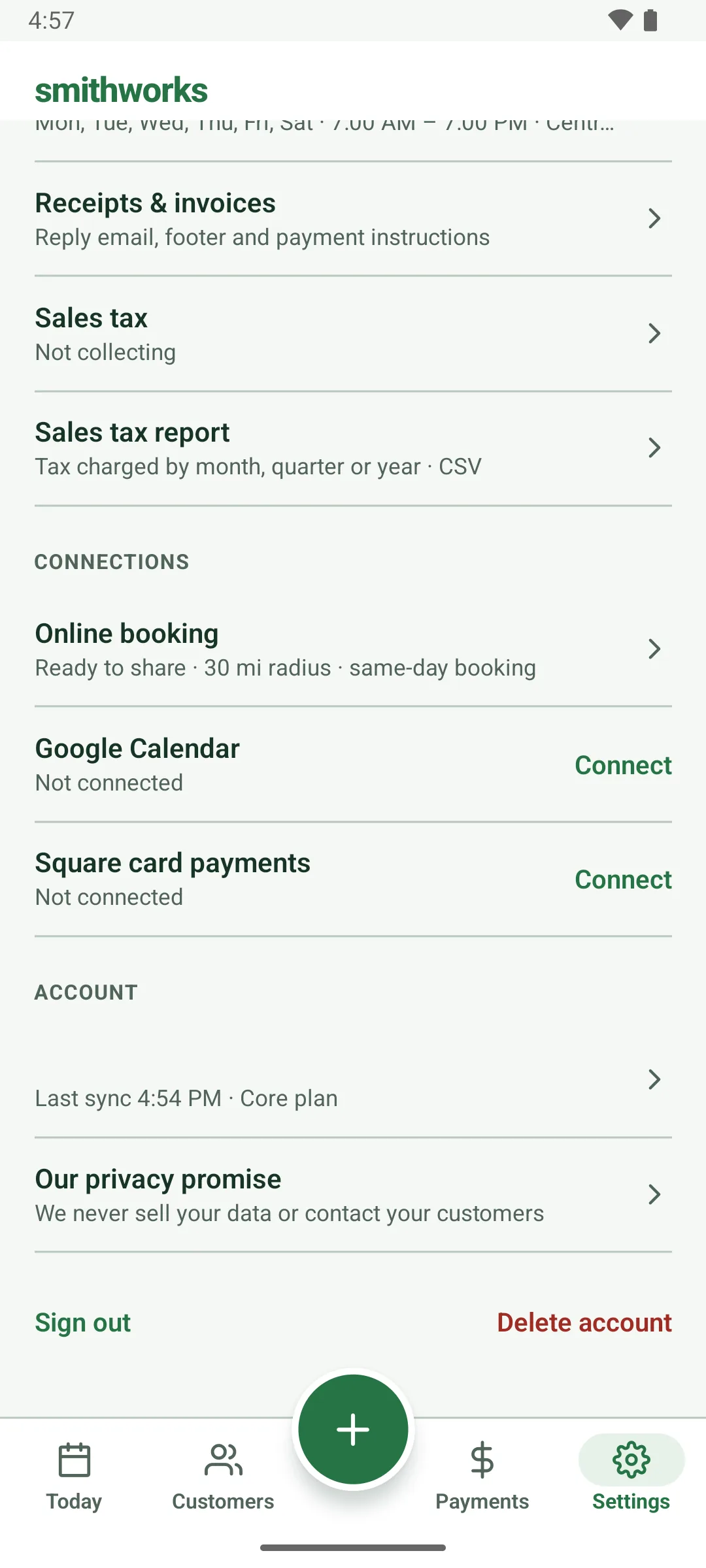
Connect your Square accountCard payments go through your own Square account, connected with Square's own sign-in.
Money goes to your Square account, and Square's processing fees apply. Disconnect closes any unpaid payment links first.
On screen: “Square card payments”, “Connect my Square account”
Card payment linkShare a Square card link for the balance through any app. The invoice updates itself when paid.
While the link is open the invoice shows Waiting for card payment. Customer pays on this phone opens Square checkout on your phone instead.
On screen: “Send payment link”, “Waiting for card payment”, “Customer pays on this phone”
Tips, tracked separatelyCard tips never change an invoice balance. See tips for today, this week, this month or all time.
On screen: “Tips”, “This week”, “This month”, “All time”
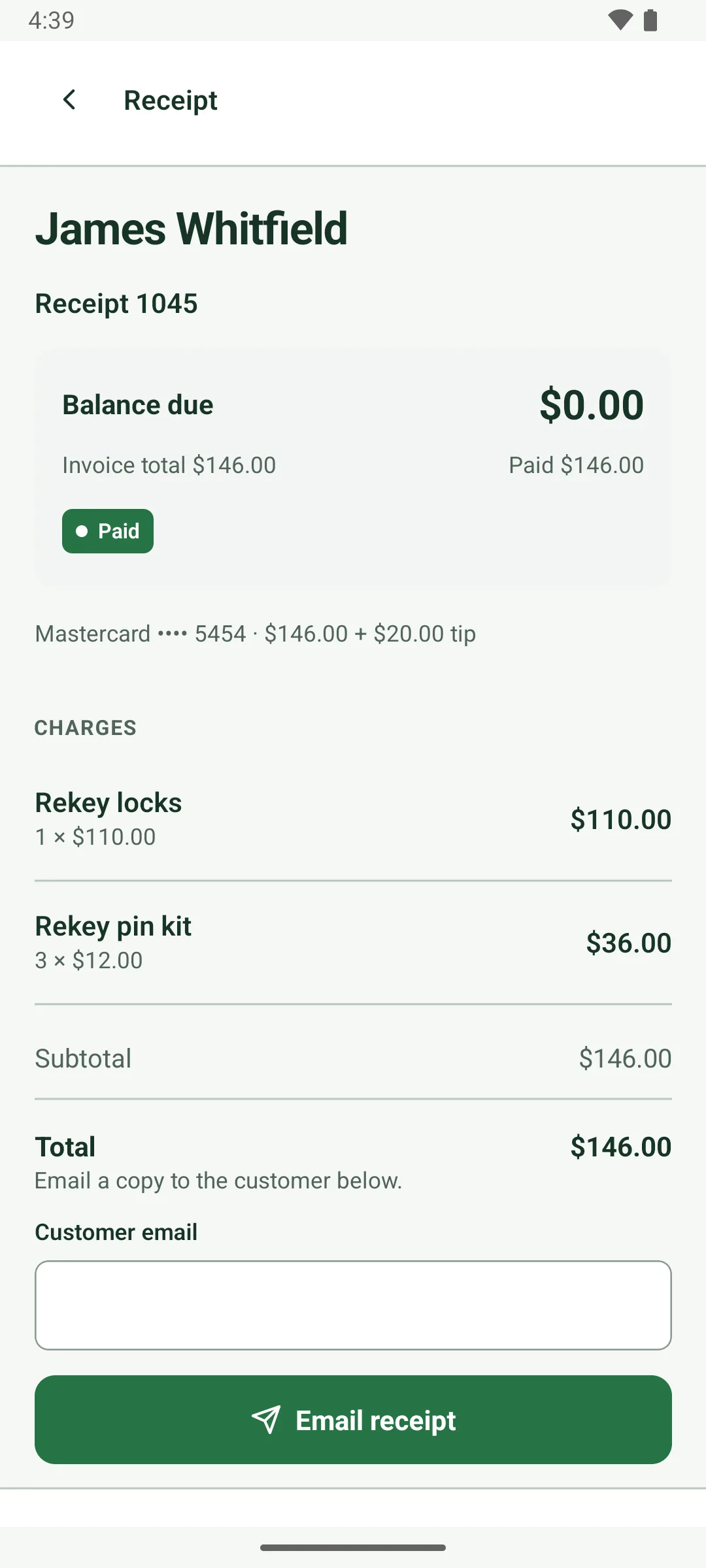
Invoice before finishingNeed to bill before you wrap up? Prepare the invoice without finishing the job.
On screen: “Prepare invoice without finishing”
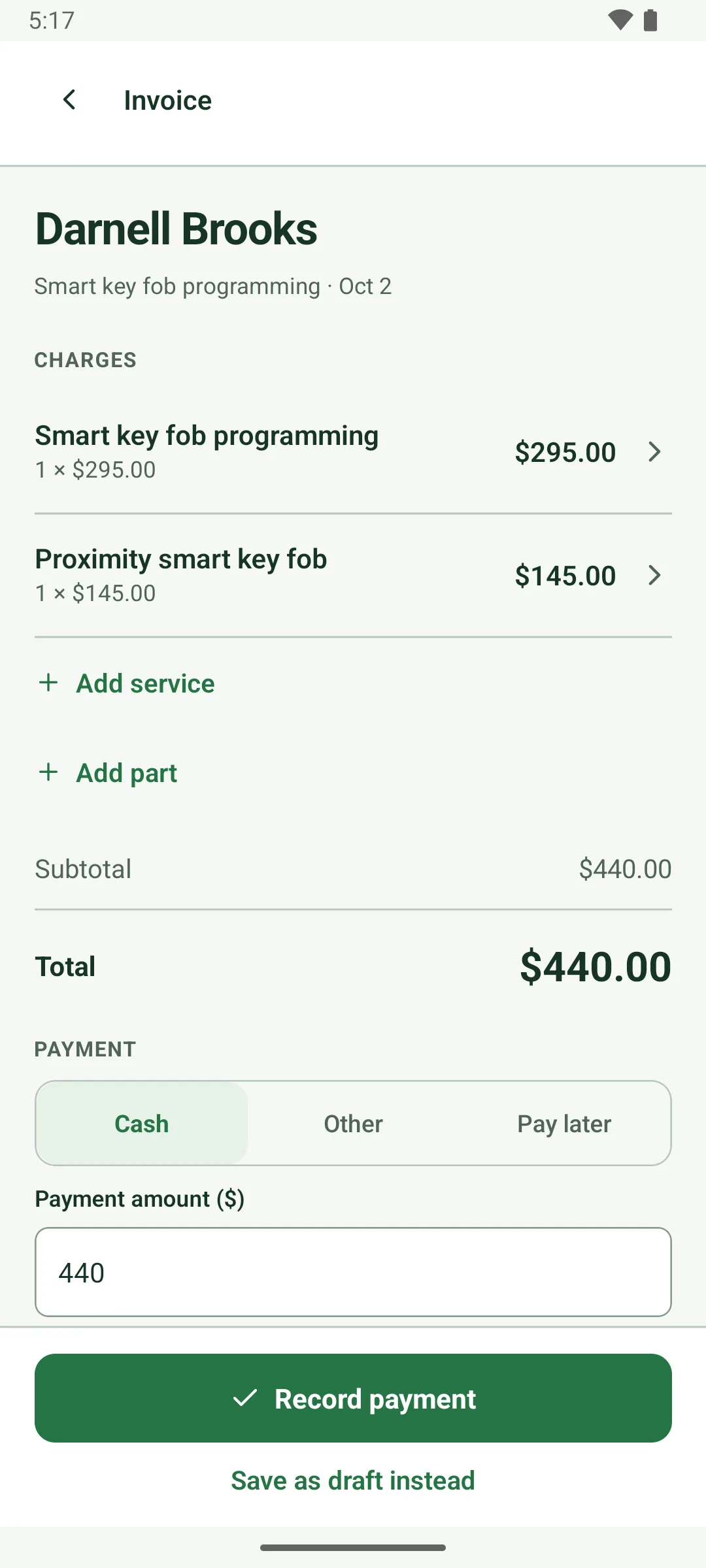
Draft invoicesNot ready to issue? Save it as a draft. The invoice list counts drafts.
On screen: “Save as draft instead”, “Draft”
Original quote at invoice timeThe invoice screen shows what you quoted, so you can check the final charges before you issue.
It's for you only and isn't printed on the customer's invoice.
On screen: “Original quote”
Resend or change the emailEach invoice remembers its recipient. Send it again or change the address any time.
The invoice shows whether the email is queued, sent or delayed. A delayed email retries on its own, with safeguards against a second copy.
On screen: “Send receipt again”, “Send invoice again”, “Change email”
Issued invoices stay as issuedA sent invoice keeps its number, charges and details, even if records change later.
Once issued, the invoice is numbered and its charges, customer, vehicle and business details are frozen.
Tax rate per invoiceSet a default tax rate once and change it on any invoice when you need to.
On screen: “Tax rate”
Buttons that name the outcomeThe finish button says what happens: record a payment, take a card, or bill later.
On screen: “Finish & record payment”, “Finish & take card payment”, “Finish & bill later”
Card details on receiptsReceipts list the card brand, last four and tip. Stale card links close when the balance changes.
If a customer still overpays, the invoice flags it so you can refund the difference in Square.
On screen: “Overpaid”
Run the business
Customers, services and parts, settings and your data.
15 features
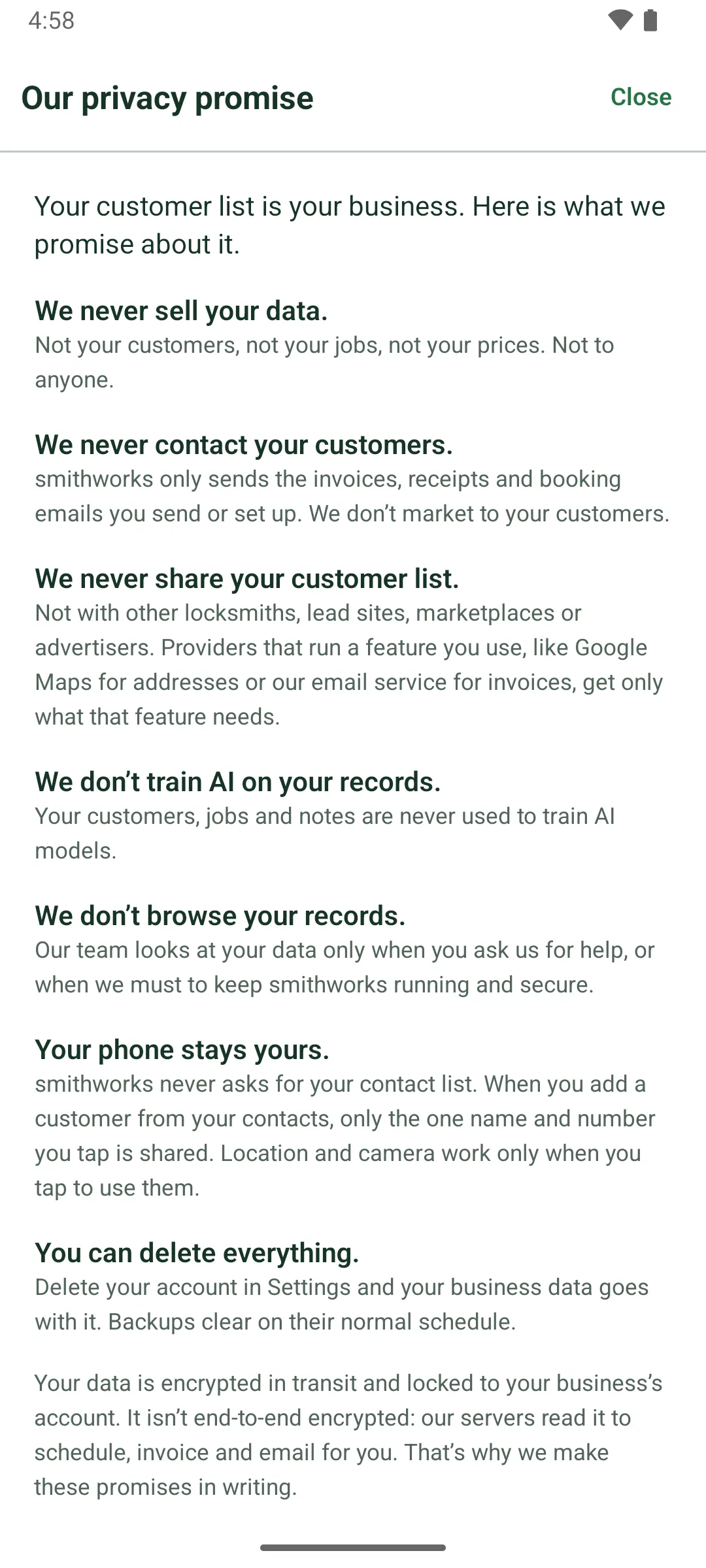
A written privacy promiseWe never sell your data, contact your customers or share your customer list. It's in writing.
We don't train AI on your records, and we look at them only when you ask for help or to keep smithworks running. Your data isn't end-to-end encrypted, and the promise says so.
On screen: “Our privacy promise”
Customer list and searchFind anyone by part of a name, company, phone, email or address.
On screen: “Customers”, “Search customers”
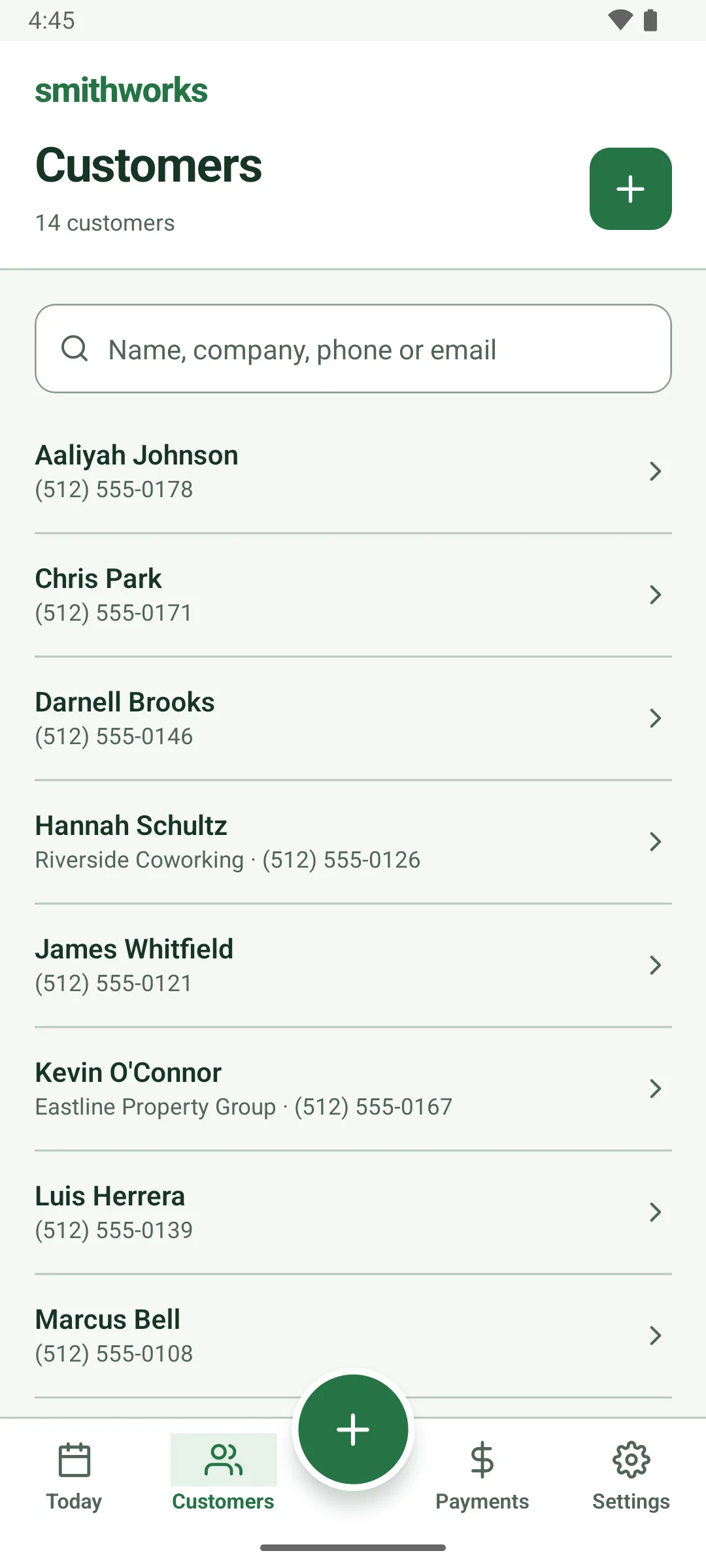
Customer profile and historyJobs, invoices and balances on one profile, with Call and Add job buttons.
The profile shows job and invoice counts, tappable phone, email and address, internal notes, and a dated history.
On screen: “Customer profile”, “Add job”, “History”
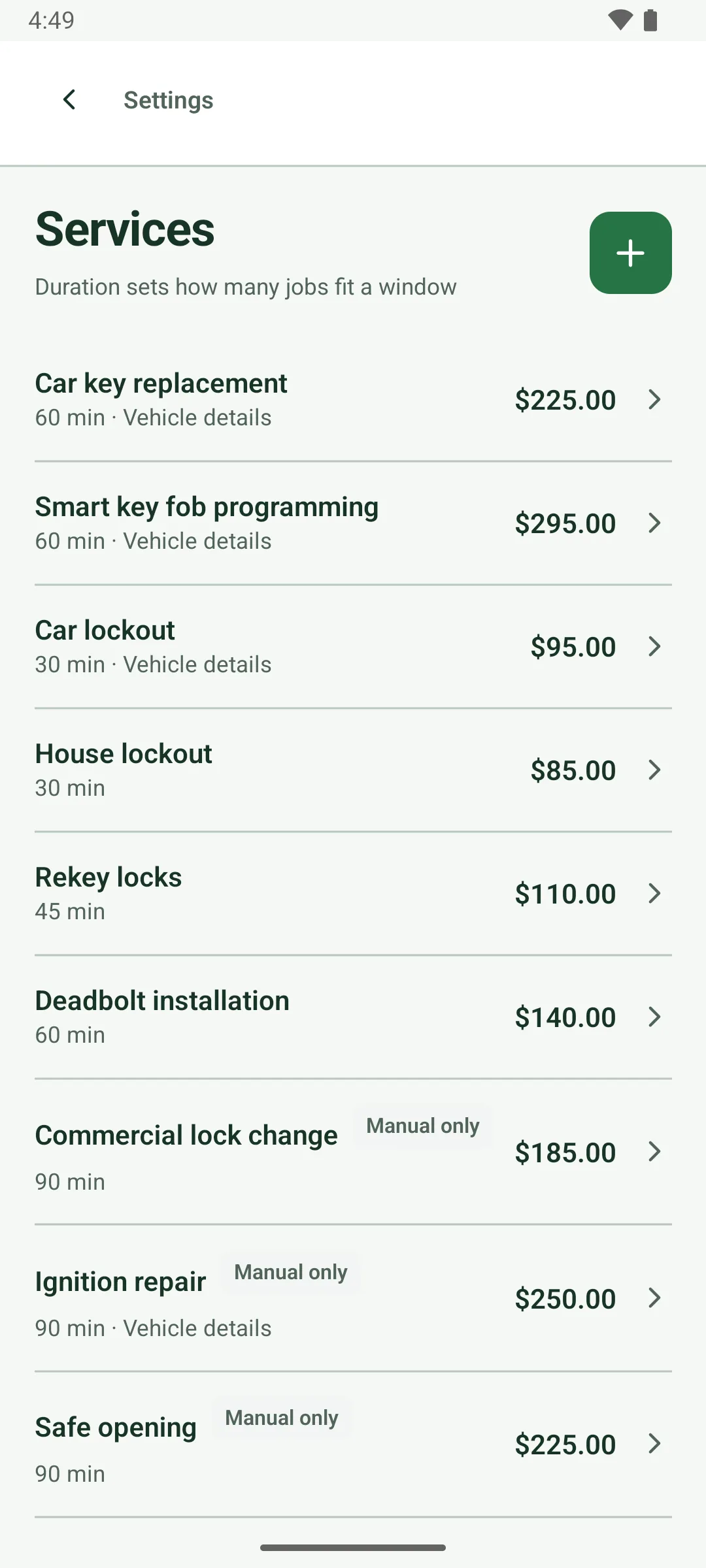
Your services and pricesSet each service's work time, starting price, default arrival window and schedule type.
Turn on Automotive service and that service's jobs ask for vehicle details.
On screen: “Services & pricing”, “Automotive service”
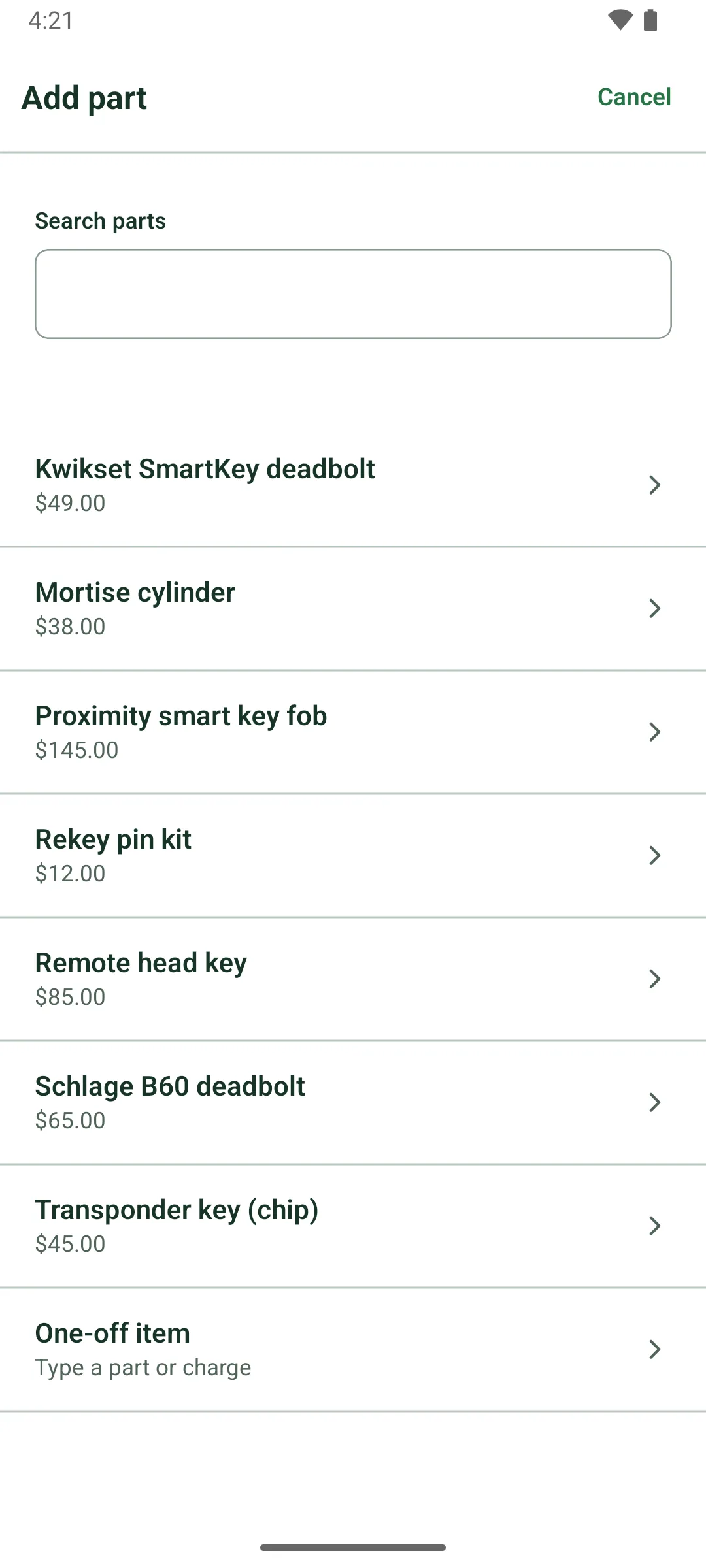
Your parts listDeadbolts, key blanks, transponder chips: priced once, picked from your list on any quote or invoice.
Settings > Parts stores what you sell. Deleting a part never changes lines already on quotes and invoices.
On screen: “Parts”, “Add part”
Set up in three stepsYour business, your working day and your services, starting from common locksmith services.
Defaults like 2-hour windows are filled in, and progress is saved if you stop halfway.
On screen: “Your business”, “Your working day”, “Your services”
No ads, no tracking codeThe app has no third-party ad or analytics code, and your information is never sold.
Delete your accountDelete your account and business data in Settings, or ask on the web.
Enter your password and type DELETE. Your login, business, customers, jobs, invoices and calendar connection are removed. smithworks.app/account-deletion explains what may remain.
On screen: “Delete account”
Full customer recordsCompany, alternate phone, email, preferred contact, billing address and private notes when you need them.
On screen: “More customer details”, “Use a different billing address”
Business details and hoursName, phone, base address, time zone, working days and hours. Each day's driving starts from base.
On screen: “Business details”, “Base address”, “Working hours”
Receipts your wayAdd a reply email, business address, thank-you footer and payment instructions, with a live preview.
Payment instructions show only when a balance remains.
On screen: “Receipts & invoices”, “Document preview”
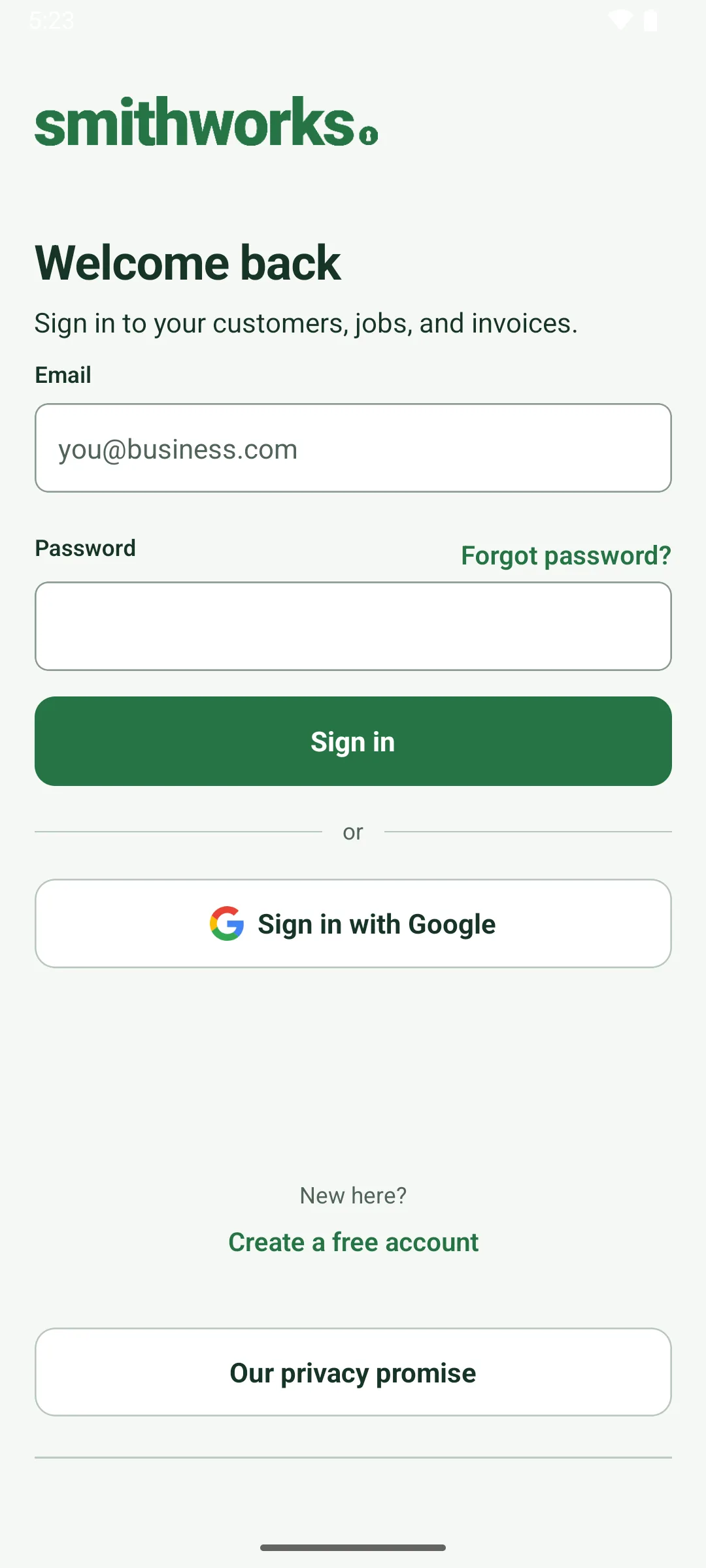
Email sign-up and resetCreate an account with your email and a 12-character password, verified by an emailed code.
Forgot it? Reset it with a code sent to your email.
On screen: “Create your account”, “Forgot password?”
Records locked to your businessOnly signed-in members of your business can reach its records.
Data is encrypted in transit, and your Google Calendar connection is stored encrypted on the server.
Help center and supportA plain-language help center, and a person at [email protected].
The support inbox aims to reply within two business days. Help & support in the app opens the same pages.
On screen: “Help & support”
Sign in with GoogleSign in or create an account with Android's Google account picker. No new password.
On screen: “Sign in with Google”